
Overview
Kubernetes with Ceph as the storage back-end is one of the most popular ways to deploy storage for Kubernetes but there are not many resources out there that really show how to deploy that from start to finish. Beyond that, setting up and maintaining a Ceph cluster requires more expertise than many organizations have time to build in-house and this is where having a storage solution like QuantaStor as an easy button is very beneficial for organizations large and small. In this article we’re going to set everything up with a detailed step-by-step process so you can easily follow along. If you have questions at the end please reach out to us at info@osnexus.com.
Before I get started, for those not familiar with all the technologies we’re going to go over in this article today I’ll start with a brief synopsis of each to get everyone up to speed.
Kubernetes is…
an open-source platform designed to automate the deployment, scaling, and management of containerized applications. It was originally developed by Google, and is now maintained by the Cloud Native Computing Foundation (CNCF). Kubernetes is often referred to as “k8s” (pronounced “kay-eight”). It comes in various flavors, mostly based on your scale and support structure. Red Hat delivers it as OpenShift, SUSE as Rancher and Canonical (Ubuntu) as Charmed Kubernetes. There are also Kubernetes distributions that are focused on creating small, potentially single node deployments such as Minikube from the Kubernetes project, MicroK8s from Canonical and K3s from Rancher. For the purposes of this exercise we’ll be using Minikube.
QuantaStor is…
an Enterprise-grade Software Defined Storage platform that turns standard servers into multi-protocol, scale-out storage appliances and delivers file, block, and object storage. OSNexus has made managing enterprise-grade, performant scale-out storage (Ceph-based) extremely simple in QuantaStor, and able to be done in a matter of minutes. The differentiating Storage Grid technology makes storage management a breeze. For the purposes of this exercise we’ll be using QuantaStor’s Scale-out File Storage for file-level storage volumes (cephfs) as opposed to block-level storage volumes (rbd) which are also possible.
Ceph-CSI is…
a Container Storage Interface (CSI) driver that enables Kubernetes clusters to leverage the power of Ceph for persistent storage management. It simplifies the provisioning and management of Ceph storage for containerized applications, providing a seamless experience for developers and administrators alike. This driver will allow us to connect QuantaStor Scale-out File Storage to Kubernetes pods (containers).
Minikube is…
Minikube is a tool that allows you to run a single-node Kubernetes cluster on your local machine, such as a laptop or desktop computer. It’s a lightweight, virtualized environment that lets you experiment with Kubernetes, develop and test applications, and learn about Kubernetes without setting up a full-scale production cluster. It’s a versatile tool that can configure a Kubernetes cluster using virtual machines or containers from the following technologies: virtualbox, kvm2, qemu2, qemu, vmware, docker, podman. For this exercise we’ll be using Minikube with Docker in a virtual machine running on vSphere.
At a Glance
This blog comes on the heals of my Nextcloud Install Using QuantaStor Scale-out Object Storage Backend post. As a result, I’m not going to re-create the Scale-out storage cluster, but rather add onto it. Therefore, if you’re configuring this from scratch you’ll want to check out that post and complete the first two steps before continuing here. Specifically, those steps, identified in the Getting Started dialog are:
- Create Cluster
- Create OSDs & Journals
From there we’ll configure QuantaStor to be ready to provide storage to Kubernetes.
In a new VM we’ll install the required components to run our mini Kubernetes “cluster” and configure the connection to QuantaStor Scale-out File Storage. Note that I will not be going over the installation process for the operating system and expect that you’ll have that part ready to go.
There are multiple ways of installing/configuring Kubernetes components. The manual way is to use native Kubernetes tools and install/configure things by hand. An easier way is to use Helm which is a package manager for Kubernetes. In this article we’ll use Helm for the heavy lifting and use Kubernetes tools for smaller portions of configuration and monitoring.
Activity Components
For this Proof of Concept, I’m using virtual machines running on VMware vSphere with a 6-node QuantaStor Storage Grid with each QuantaStor VM containing:
- vCPUs: 6
- RAM: 8GB
- OS: QuantaStor 6.5
- Networking: Single 10GB connection with simple, combined front-end and back-end configuration
- Storage:
- 1 x 100GB SSD for QS OS install/boot
- 2 x 100GB SSDs for journaling
- 4 x 10GB SSDs for data
Minikube v1.34.0 – Single VM running Ubuntu 24.04 (minimized):
- vCPUs: 2
- RAM: 8GB
- Network: Single 10GB Network connection with a static IP address
- Storage: 1 x 30GB vDisk
QuantaStor Scale-Out Storage Configuration
Note: Many of the images in this post won’t be easily read. Clicking on them will open a full-size image that is much more digestable.
ACTION: Login to the QuantaStor Web UI at this stage to prepare to do further configuration steps.

Note the Tasks pane at the bottom of the page. At the end of each step (after clicking OK) watch the Tasks pane to determine when that task is completed before moving to the next step. In some cases, the initial task will spawn additional tasks and move the initial task down the list. You may need to scroll down in the Tasks pane to determine when all the tasks for a step have been completed. Depending on the size of your window, the Tasks pane may be obscured by the Getting Started dialog or another dialog. In this case you can close the dialog and return to it once the tasks are completed.
ACTION: Click on the Getting Started button in the top-right of the main QS UI windows to display the Getting Started dialog.

ACTION: Click Setup Scale-out File Pool in the left pane of the dialog. We’ll be using a scale-out file storage pool (CephFS) as our storage for Kubernetes.

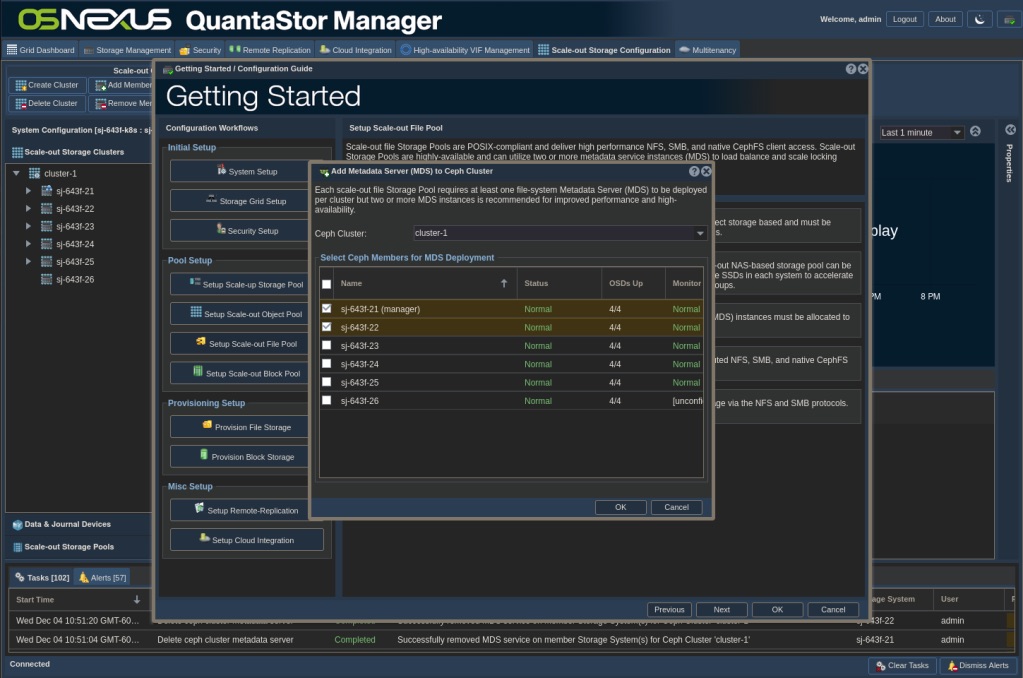
ACTION: Click Add MDS in the right pane of the dialog. For this activity which will not be high volume, I’m going to configure for a small, but fault-tolerant pool. Select the first 2 nodes, then click OK. This will deploy a filesystem metadata service on the selected nodes, one in ‘active’ and one in ‘standby’ mode.

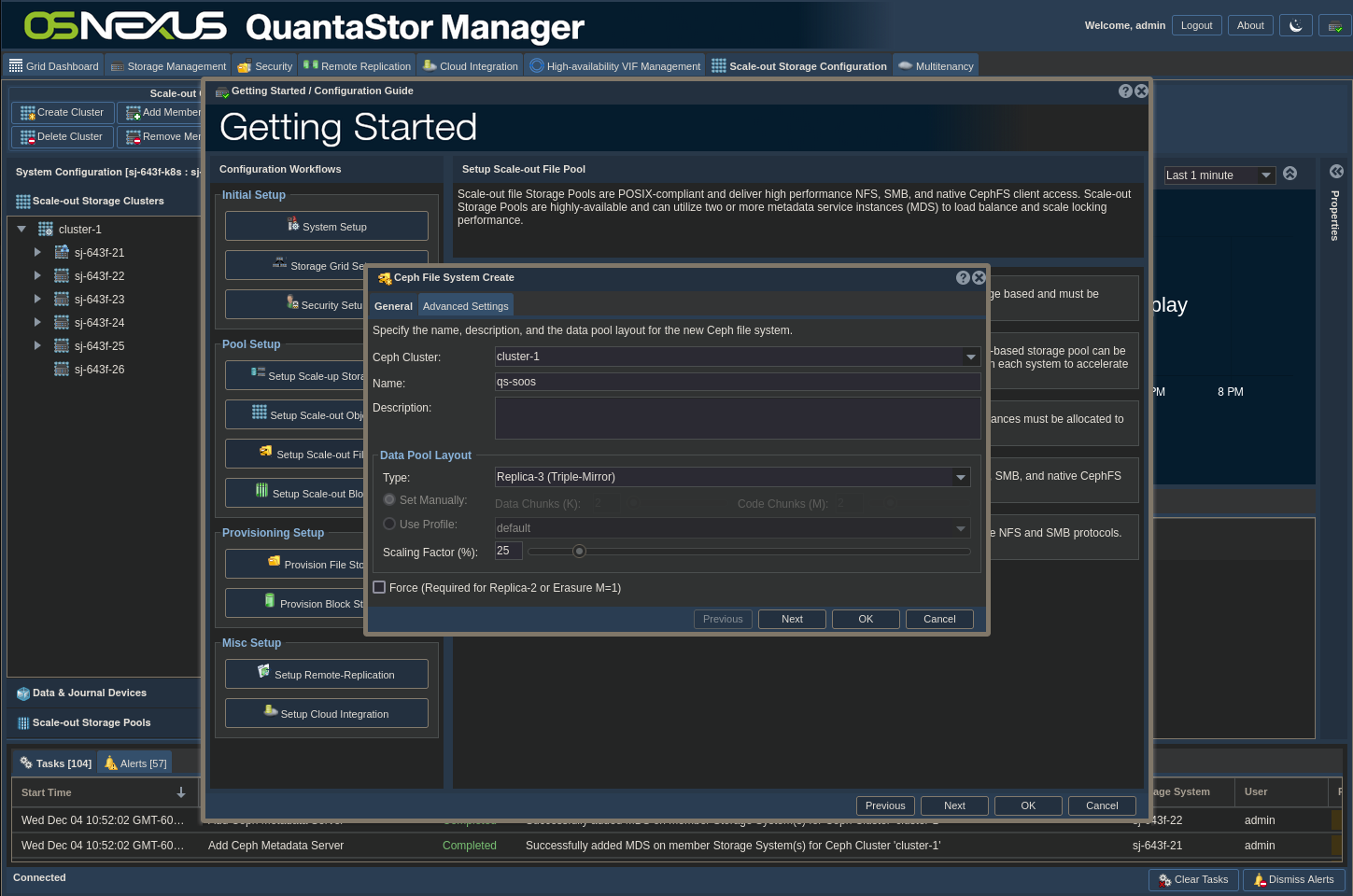
ACTION: Once the task is completed, go back to the Getting Started dialog and click Create File Storage Pool in the right pane of the dialog
- Give the pool a Name (I used “qs-soos”, you can use any name like “kube-csi-fs”)
- Set the Type as Replica-3 and set the Scaling Factor to the default of 50%. This will set the initial number of Ceph placement groups at a level that will allow for additional pool creation and this can be adjust at a later date as needed.
- Note: Specifically when configuring Scale-out File Storage for use with Kubernetes it is important to use replica-3 for the storage layout. In current versions of Ceph you’ll see a roughly 80% reduction in IOPS by using erasure coding (EC) layouts so they are to be avoided. Also, it’s important to use flash media, ideally NVMe, for all Kubernetes deployments as HDDs will not deliver the necessary IOPs.
- Click OK.
There’s one more thing we need to do to configure QuantaStor, but at this point in time it cannot be completed via the Web UI. Complete the following in a terminal window (which you should keep open as I’ll be referring back to it later):
- SSH to one of the QuantaStor nodes
- Switch to the root user
- Create a Ceph subvolume group called “csi” for use with ceph-csi
- Create a directory for a mount point
- Mount the cephfs
- Note, QuantaStor already mounts the CephFS filesystem under /mnt/storage-pools/qs-UUID so you can see what’s going on there but I’m showing how to mount it here just to illustrate how to do it.
$ ssh qadmin@10.0.18.21
qadmin@10.0.18.21's password:
Linux sj-643f-21 5.15.0-91-generic #101~20.04.1-Ubuntu SMP Thu Nov 16 14:22:28 UTC 2023 x86_64 x86_64 x86_64 GNU/Linux
Ubuntu 20.04.6 LTS
OSNEXUS QuantaStor 6.5.0.152+next-e09a6f149b

== System Info ==
Uptime: up 1 week, 4 days, 5 hours, 45 minutes
CPU: 6 cores
RAM: 7.75104 GB


 System information as of Tue 03 Dec 2024 06:21:14 PM UTC

  System load:  1.46               Processes:               350
  Usage of /:   22.6% of 56.38GB   Users logged in:         1
  Memory usage: 34%                IPv4 address for ens192: 10.0.18.21
  Swap usage:   0%

Last login: Mon Dec  2 21:29:19 2024 from 10.0.0.1
qadmin@sj-643f-21:~$ sudo -i
[sudo] password for qadmin:
root@sj-643f-21:~# ceph fs subvolumegroup create qs-soos csi
root@sj-643f-21:~# mkdir cephfs
root@sj-643f-21:~# ceph-fuse -m 10.0.18.21:6789 --id admin cephfs
2024-12-03T18:33:24.715+0000 7f31b2f1c640 -1 init, newargv = 0x560d123ac5a0 newargc=15
ceph-fuse[1843620]: starting ceph client
ceph-fuse[1843620]: starting fuse
root@sj-643f-21:~# ls cephfs/volumes/csi
root@sj-643f-21:~# USER=kubernetes
root@sj-643f-21:~# FS_NAME=qs-soos
root@sj-643f-21:~# SUB_VOL=csi
root@sj-643f-21:~# ceph auth get-or-create client.$USER \
>   mgr "allow rw" \
>   osd "allow rw tag cephfs metadata=$FS_NAME, allow rw tag cephfs data=$FS_NAME" \
>   mds "allow r fsname=$FS_NAME path=/volumes, allow rws fsname=$FS_NAME path=/volumes/$SUB_VOL" \
>   mon "allow r fsname=$FS_NAME"
root@sj-643f-21:~# ceph auth get client.kubernetes
[client.kubernetes]
	key = AQBBqlBnYHM1ChAAh0ZWH0rr8cs+hY1/wi+vmA==
	caps mds = "allow r fsname=qs-soos path=/volumes, allow rws fsname=qs-soos path=/volumes/csi"
	caps mgr = "allow rw"
	caps mon = "allow r fsname=qs-soos"
	caps osd = "allow rw tag cephfs metadata=qs-soos, allow rw tag cephfs data=qs-soos"
root@sj-643f-21:~# ceph mon dump
epoch 6
fsid 9d54e688-73b5-1a84-2625-ca94f8956471
last_changed 2024-11-12T20:31:55.872659+0000
created 2024-11-12T20:30:30.905383+0000
min_mon_release 18 (reef)
election_strategy: 1
0: [v2:10.0.18.21:3300/0,v1:10.0.18.21:6789/0] mon.sj-643f-21
1: [v2:10.0.18.24:3300/0,v1:10.0.18.24:6789/0] mon.sj-643f-24
2: [v2:10.0.18.23:3300/0,v1:10.0.18.23:6789/0] mon.sj-643f-23
3: [v2:10.0.18.22:3300/0,v1:10.0.18.22:6789/0] mon.sj-643f-22
4: [v2:10.0.18.25:3300/0,v1:10.0.18.25:6789/0] mon.sj-643f-25
dumped monmap epoch 6
root@sj-643f-21:~#
In the output, note the following information from the output as you will need it during configuration:
- From: ceph auth get client.kubernetes
- key value for the kubernetes user
- From: ceph mon dump
- fsid value
- IP addresses for the ceph monitor nodes
With that the QuantaStor configuration is complete. As mentioned above, leaving the SSH session open will allow us to see what the Ceph-CSI driver is creating as we complete our Kubernetes configuration.
Install Prerequisites
Open a new terminal and SSH to the node you’ll be using for Kubernetes. From there complete the following sections.
Install Docker
The first thing we need to do is to install Docker so that Minikube has a platform to use. The Docker installation instructions can be found here. In the terminal you opened, execute the following commands (output excluded and lines beginning with “#” are comments).
# SSH to the Minikube/Kubernetes node
$ ssh osnexus@10.0.18.13

# Add Docker's official GPG key:
$ sudo apt-get update
$ sudo apt-get install ca-certificates curl
$ sudo install -m 0755 -d /etc/apt/keyrings
$ sudo curl -fsSL https://download.docker.com/linux/ubuntu/gpg -o /etc/apt/keyrings/docker.asc
$ sudo chmod a+r /etc/apt/keyrings/docker.asc

# Add the repository to Apt sources:
$ echo \
  "deb [arch=$(dpkg --print-architecture) signed-by=/etc/apt/keyrings/docker.asc] https://download.docker.com/linux/ubuntu \
  $(. /etc/os-release && echo "$VERSION_CODENAME") stable" | \
  sudo tee /etc/apt/sources.list.d/docker.list > /dev/null
$ sudo apt-get update

# Install Docker
$ sudo apt-get install -y docker-ce docker-ce-cli containerd.io docker-buildx-plugin docker-compose-plugin

# Add current user to docker group
$ sudo usermod -aG docker $USER

# Exit the session and reconnect via SSH to refresh group membership
$ exit
$ ssh osnexus@10.0.18.13

# Validate Docker from non-root user
$ id
$ docker ps
Install Individual Prerequisites
To complete this exercise we’ll need to install three tools (documentation linked):
- Minikube – Single-node Kubernetes tool
- Helm – Package manager for Kubernetes
- Kubectl – The command-line tool for interacting with a Kubernetes cluster.
# Change to Downloads directory
$ cd ~

# Install minikube
$ curl -LO https://storage.googleapis.com/minikube/releases/latest/minikube-linux-amd64
$ sudo install minikube-linux-amd64 /usr/local/bin/minikube
$ rm minikube-linux-amd64

# Install Helm
$ curl -LO https://get.helm.sh/helm-v3.16.2-linux-amd64.tar.gz
$ tar xzf helm-v3.16.2-linux-amd64.tar.gz
$ rm helm-v3.16.2-linux-amd64.tar.gz
$ sudo install ./linux-amd64/helm /usr/local/bin/helm
$ rm -rf linux-amd64

# Install Kubectl
$ curl -LO "https://dl.k8s.io/release/$(curl -L -s https://dl.k8s.io/release/stable.txt)/bin/linux/amd64/kubectl"
$ sudo install kubectl /usr/local/bin/kubectl
$ rm kubectl

# Validate install
$ ls -lh /usr/local/bin/
$ minikube version
$ helm version
$ kubectl version
Once completed we’re ready to move on to Kubernetes!
Kubernetes Configuration
Now we can get to the real meat of this post! Buckle up…
Start Minikube:
$ minikube start
😄  minikube v1.34.0 on Ubuntu 24.04
✨  Automatically selected the docker driver
📌  Using Docker driver with root privileges
👍  Starting "minikube" primary control-plane node in "minikube" cluster
🚜  Pulling base image v0.0.45 ...
💾  Downloading Kubernetes v1.31.0 preload ...
    > gcr.io/k8s-minikube/kicbase...:  487.90 MiB / 487.90 MiB  100.00% 6.10 Mi
    > preloaded-images-k8s-v18-v1...:  326.69 MiB / 326.69 MiB  100.00% 4.05 Mi
🔥  Creating docker container (CPUs=2, Memory=2200MB) ...
🐳  Preparing Kubernetes v1.31.0 on Docker 27.2.0 ...
    ▪ Generating certificates and keys ...
    ▪ Booting up control plane ...
    ▪ Configuring RBAC rules ...
🔗  Configuring bridge CNI (Container Networking Interface) ...
🔎  Verifying Kubernetes components...
    ▪ Using image gcr.io/k8s-minikube/storage-provisioner:v5
🌟  Enabled addons: default-storageclass, storage-provisioner
🏄  Done! kubectl is now configured to use "minikube" cluster and "default" namespace by default
From this output you’ll find that minikube is using Docker and Kubernetes version 1.31.0.
Check to see if Kubernetes is running/working:
$ kubectl get all
NAME                 TYPE        CLUSTER-IP   EXTERNAL-IP   PORT(S)   AGE
service/kubernetes   ClusterIP   10.96.0.1    <none>        443/TCP   2m12s
Now we need to enable Helm on the K8s cluster:
$ minikube addons enable helm-tiller
❗  helm-tiller is a 3rd party addon and is not maintained or verified by minikube maintainers, enable at your own risk.
❗  helm-tiller does not currently have an associated maintainer.
    ▪ Using image ghcr.io/helm/tiller:v2.17.0
🌟  The 'helm-tiller' addon is enabled
In order to use Helm to install the Ceph-CSI driver we need to tell Helm where to find the “charts” that will be required. This is similar to adding an apt or yum repository to your Linux system.
$ helm repo add ceph-csi https://ceph.github.io/csi-charts
"ceph-csi" has been added to your repositories
Now we’re getting to the details. First, I want to touch on versioning. If no versioning information is specified, Helm will use the latest development version. This is not good from a production standpoint, so we want to distinctly specify the version we want to use. If you go to the Ceph-CSI Releases page you’ll find that the latest RELEASED version is 3.12.2 (at the time of this writing) so we’ll use that. You’ll see the version noted in our Helm commands.
The first part of the configuration is to modify a big YAML file with the details that will allow the CSI driver to communicate with QuantaStor. In essence, we’re going to ask Helm to provide a YAML values file with the default values and modify from there. The way I’m going to approach it in this article will be to pull out the relevant sections and discuss them. Not every line/section of the file will be represented in the article but should be left in the values file. I’ll also be removing the comments in the sections I do show for sake of clarity. In addition, I find it VERY advisable to be able to validate that the config that you put in the file is actually represented properly after Helm configures it, as it’s possible for a single erroneous line to negate an entire section of the file. To that end, I’ll be providing the commands to show the configurations that Kubernetes knows so you can compare with what you intended in the values file.
Let’s start by getting our default values file:
$ helm show values --version 3.12.2 ceph-csi/ceph-csi-cephfs > defaultValues.3.12.2.yaml
$ cp defaultValues.3.12.2.yaml values.3.12.2.yaml
I suggest modifying the values.3.12.2.yaml file, leaving the defaultValues.3.12.2.yaml file as a reference. From here you have a choice to modify the values file at the cli with vi, nano, etc. or SCP the file to your desktop to manipulate it in a GUI tool. Since this is a Linux file, take care to use an appropriate text editor if you’re going to modify it on a Windows system. Let’s get configuring!
values.3.12.2.yaml Configuration
csiConfig:
In this section:
- set the cluster ID to the fsid value you noted above
- add the monitor IP addresses to the monitor list using trailing commas for all but the last entry
- MAKE SURE TO COMMENT OUT the netNamespaceFilePath. If it’s uncommented it will cause the volume to fail to mount in the pod. This appears to be a bug with this version of the code.
- MAKE SURE THE “csiConfig: []” LINE IS COMMENTED OUT WITH A “#”. As mentioned previously, if this is not done it will negate all of the values above it.
csiConfig:
  - clusterID: 9d54e688-73b5-1a84-2625-ca94f8956471
    monitors: [
      10.0.18.21,
      10.0.18.22,
      10.0.18.23,
      10.0.18.24,
      10.0.18.25
    ]
    cephFS:
      subvolumeGroup: "csi"
#      netNamespaceFilePath: "{{ .kubeletDir }}/plugins/{{ .driverName }}/net"
# csiConfig: []
provisioner:
Since we’ve provisioned a single-node cluster with minikube, we don’t need 3 replicas. Change the replicaCount value to 1.
provisioner:
  name: provisioner
  replicaCount: 1
  strategy:
...
storageClass:
In this section you will:
- Set the clusterID value to the fsid value you found above
- Set the fsName value to the name of the File Storage Pool you created in the QuantaStor web UI. I used “qs-soos”.
- (Optional) Set the volumeNamePrefix to something that would relate the created volumes to this instance of the CSI driver
storageClass:
  create: true
  name: csi-cephfs-sc
  annotations: {}

  clusterID: 9d54e688-73b5-1a84-2625-ca94f8956471
  fsName: qs-soos
  pool: ""
  fuseMountOptions: ""
  kernelMountOptions: ""
  mounter: ""
  volumeNamePrefix: "poc-k8s-"
  provisionerSecret: csi-cephfs-secret
  provisionerSecretNamespace: ""
  controllerExpandSecret: csi-cephfs-secret
  controllerExpandSecretNamespace: ""
  nodeStageSecret: csi-cephfs-secret
  nodeStageSecretNamespace: ""
  reclaimPolicy: Delete
  allowVolumeExpansion: true
  mountOptions: []
secret:
In this section:
- Set adminID to “kubernetes” (assuming you used this when we created the user at the QS cli)
- Set adminKey to the key we retrieved after we created the kubernetes user at the QS cli
secret:
  create: true
  name: csi-cephfs-secret
  annotations: {}
  adminID: kubernetes
  adminKey: AQDkujNnBENXGBAAGMjRTQOxg/wYtUgyaBruYw==
Deploy Ceph-CSI using Helm
If you modified the values file on your desktop, SCP it back to the Minikube node. Now we’re ready to deploy:
$ kubectl create namespace ceph-csi-cephfs
namespace/ceph-csi-cephfs created
$ helm install -n "ceph-csi-cephfs" --set image.tag=3.12.2 "ceph-csi-cephfs" ceph-csi/ceph-csi-cephfs --values ./values.3.12.2.yaml
NAME: ceph-csi-cephfs
LAST DEPLOYED: Wed Dec  4 19:52:31 2024
NAMESPACE: ceph-csi-cephfs
STATUS: deployed
REVISION: 1
TEST SUITE: None
NOTES:
Examples on how to configure a storage class and start using the driver are here:
https://github.com/ceph/ceph-csi/tree/v3.12.3/examples/cephfs
$ kubectl -n ceph-csi-cephfs get all
NAME                                               READY   STATUS    RESTARTS   AGE
pod/ceph-csi-cephfs-nodeplugin-8bjmn               3/3     Running   0          6m44s
pod/ceph-csi-cephfs-provisioner-6fb5dcf877-tr499   5/5     Running   0          6m44s

NAME                                               TYPE        CLUSTER-IP      EXTERNAL-IP   PORT(S)    AGE
service/ceph-csi-cephfs-nodeplugin-http-metrics    ClusterIP   10.97.182.127   <none>        8080/TCP   6m44s
service/ceph-csi-cephfs-provisioner-http-metrics   ClusterIP   10.109.21.251   <none>        8080/TCP   6m44s

NAME                                        DESIRED   CURRENT   READY   UP-TO-DATE   AVAILABLE   NODE SELECTOR   AGE
daemonset.apps/ceph-csi-cephfs-nodeplugin   1         1         1       1            1           <none>          6m44s

NAME                                          READY   UP-TO-DATE   AVAILABLE   AGE
deployment.apps/ceph-csi-cephfs-provisioner   1/1     1            1           6m44s

NAME                                                     DESIRED   CURRENT   READY   AGE
replicaset.apps/ceph-csi-cephfs-provisioner-6fb5dcf877   1         1         1       6m44s
A couple things to note. The vast majority of kubectl commands going forward through this article are going to require that you add the CSI namespace by adding “-n ceph-csi-cephfs” after kubectl. When you run that last get all command, the two pods may not enter the running state right away. In the background, Kubernetes is pulling the container images required. One easy way to keep an eye on it so you know when you can continue is to use the watch command:
$ watch -n 3 kubectl -n ceph-csi-cephfs get allWatch will issue the kubectl get all command every 3 seconds. When the two pods are both in the Running status you’re ready to proceed.
One more thing to note here is the number of pod/ceph-csi-cephfs-provisioner entries we have. If you recall, in our provisioner config we changed replicaCount from 3 to 1. If you missed that, there would be 3 entries and two of them would not be able to start. That is because those replicas are configured to run on separate nodes, and because we only have one node only one is allowed to run. If you did miss that config and want to fix it now, you can run the following command:
$ kubectl -n ceph-csi-cephfs scale deployment ceph-csi-cephfs-provisioner --replicas=1Validating the Deployed Configuration
Because there were a lot of pieces deployed, let’s validate that the deployed configuration is what we expected:
# The csiConfig and cephconf sections of the values file create Config Maps (cm)
$ kubectl -n ceph-csi-cephfs get cm
NAME               DATA   AGE
ceph-config        2      16m
ceph-csi-config    1      16m
kube-root-ca.crt   1      16m
$ kubectl -n ceph-csi-cephfs get -o yaml cm ceph-csi-config
apiVersion: v1
data:
  config.json: '[{"cephFS":{"subvolumeGroup":"csi"},"clusterID":"9d54e688-73b5-1a84-2625-ca94f8956471","monitors":["10.0.18.21","10.0.18.22","10.0.18.23","10.0.18.24","10.0.18.25"]}]'
kind: ConfigMap
metadata:
  annotations:
    meta.helm.sh/release-name: ceph-csi-cephfs
    meta.helm.sh/release-namespace: ceph-csi-cephfs
  creationTimestamp: "2024-12-04T19:52:32Z"
  labels:
    app: ceph-csi-cephfs
    app.kubernetes.io/managed-by: Helm
    chart: ceph-csi-cephfs-3.12.3
    component: provisioner
    heritage: Helm
    release: ceph-csi-cephfs
  name: ceph-csi-config
  namespace: ceph-csi-cephfs
  resourceVersion: "4230"
  uid: 71caec24-479a-4ef7-bc22-cb4fc9425eab
$ kubectl -n ceph-csi-cephfs get -o yaml cm ceph-config
apiVersion: v1
data:
  ceph.conf: |
    [global]
      auth_cluster_required = cephx
      auth_service_required = cephx
      auth_client_required = cephx

      # ceph-fuse which uses libfuse2 by default has write buffer size of 2KiB
      # adding 'fuse_big_writes = true' option by default to override this limit
      # see https://github.com/ceph/ceph-csi/issues/1928
      fuse_big_writes = true
  keyring: ""
kind: ConfigMap
metadata:
  annotations:
    meta.helm.sh/release-name: ceph-csi-cephfs
    meta.helm.sh/release-namespace: ceph-csi-cephfs
  creationTimestamp: "2024-12-04T19:52:32Z"
  labels:
    app: ceph-csi-cephfs
    app.kubernetes.io/managed-by: Helm
    chart: ceph-csi-cephfs-3.12.3
    component: nodeplugin
    heritage: Helm
    release: ceph-csi-cephfs
  name: ceph-config
  namespace: ceph-csi-cephfs
  resourceVersion: "4231"
  uid: 550cf0f4-6eb7-4359-a8b9-7a3cb4c40d44
Both of those Config Maps are representative of the configuration in our values file, so we’re good to continue.
# The secret (kubernetes user creds) are encrypted
$ kubectl -n ceph-csi-cephfs get secrets
NAME                                    TYPE                 DATA   AGE
csi-cephfs-secret                       Opaque               2      20m
sh.helm.release.v1.ceph-csi-cephfs.v1   helm.sh/release.v1   1      20m
$ kubectl -n ceph-csi-cephfs get -o yaml secret csi-cephfs-secret
apiVersion: v1
data:
  adminID: a3ViZXJuZXRlcw==
  adminKey: QVFCQnFsQm5ZSE0xQ2hBQWgwWldIMHJyOGNzK2hZMS93aSt2bUE9PQ==
kind: Secret
metadata:
  annotations:
    meta.helm.sh/release-name: ceph-csi-cephfs
    meta.helm.sh/release-namespace: ceph-csi-cephfs
  creationTimestamp: "2024-12-04T19:52:32Z"
  labels:
    app: ceph-csi-cephfs
    app.kubernetes.io/managed-by: Helm
    chart: ceph-csi-cephfs-3.12.3
    heritage: Helm
    release: ceph-csi-cephfs
  name: csi-cephfs-secret
  namespace: ceph-csi-cephfs
  resourceVersion: "4229"
  uid: 8215988e-3dd1-4ce3-b0dc-0267781cbcfd
type: Opaque
Because the user and key are encrypted in the Secret we can’t be sure that it’s accurate, but we see that it WAS created based on our values file, so we should be OK.
# The Storage Class (sc)
$ kubectl -n ceph-csi-cephfs get sc
NAME                 PROVISIONER                RECLAIMPOLICY   VOLUMEBINDINGMODE   ALLOWVOLUMEEXPANSION   AGE
csi-cephfs-sc        cephfs.csi.ceph.com        Delete          Immediate           true                   24m
standard (default)   k8s.io/minikube-hostpath   Delete          Immediate           false                  103m
$ kubectl -n ceph-csi-cephfs get -o yaml sc csi-cephfs-sc
allowVolumeExpansion: true
apiVersion: storage.k8s.io/v1
kind: StorageClass
metadata:
  annotations:
    meta.helm.sh/release-name: ceph-csi-cephfs
    meta.helm.sh/release-namespace: ceph-csi-cephfs
  creationTimestamp: "2024-12-04T19:52:32Z"
  labels:
    app: ceph-csi-cephfs
    app.kubernetes.io/managed-by: Helm
    chart: ceph-csi-cephfs-3.12.3
    heritage: Helm
    release: ceph-csi-cephfs
  name: csi-cephfs-sc
  resourceVersion: "4232"
  uid: 3eed6266-982a-49b0-8f33-fd52a7ca36f9
parameters:
  clusterID: 9d54e688-73b5-1a84-2625-ca94f8956471
  csi.storage.k8s.io/controller-expand-secret-name: csi-cephfs-secret
  csi.storage.k8s.io/controller-expand-secret-namespace: ceph-csi-cephfs
  csi.storage.k8s.io/node-stage-secret-name: csi-cephfs-secret
  csi.storage.k8s.io/node-stage-secret-namespace: ceph-csi-cephfs
  csi.storage.k8s.io/provisioner-secret-name: csi-cephfs-secret
  csi.storage.k8s.io/provisioner-secret-namespace: ceph-csi-cephfs
  fsName: qs-soos
  volumeNamePrefix: poc-k8s-
provisioner: cephfs.csi.ceph.com
reclaimPolicy: Delete
volumeBindingMode: Immediate
The Storage Class appears to have the configurations we used in our values file. Good to proceed.
Now let’s take a look at the log files for the nodeplugin and provisioner pods. Make sure you use YOUR pod names. You’ll note that the end of the pod names are random to avoid naming conflicts. There’s actually more to it than that, but we won’t get into that.
$ kubectl -n ceph-csi-cephfs logs ceph-csi-cephfs-nodeplugin-8bjmn
Defaulted container "csi-cephfsplugin" out of: csi-cephfsplugin, driver-registrar, liveness-prometheus
I1204 19:54:27.452962   16949 cephcsi.go:196] Driver version: v3.12.2 and Git version: dcf14882dd4d2e7064fee259b9c81424a3bfc04f
I1204 19:54:27.453597   16949 cephcsi.go:274] Initial PID limit is set to 9445
I1204 19:54:27.453768   16949 cephcsi.go:280] Reconfigured PID limit to -1 (max)
I1204 19:54:27.453840   16949 cephcsi.go:228] Starting driver type: cephfs with name: cephfs.csi.ceph.com
I1204 19:54:27.510758   16949 volumemounter.go:79] loaded mounter: kernel
I1204 19:54:27.554950   16949 volumemounter.go:90] loaded mounter: fuse
I1204 19:54:27.622164   16949 mount_linux.go:282] Detected umount with safe 'not mounted' behavior
I1204 19:54:27.623713   16949 server.go:114] listening for CSI-Addons requests on address: &net.UnixAddr{Name:"/tmp/csi-addons.sock", Net:"unix"}
I1204 19:54:27.626132   16949 server.go:117] Listening for connections on address: &net.UnixAddr{Name:"//csi/csi.sock", Net:"unix"}
I1204 19:54:30.943092   16949 utils.go:240] ID: 1 GRPC call: /csi.v1.Identity/GetPluginInfo
I1204 19:54:30.951360   16949 utils.go:241] ID: 1 GRPC request: {}
I1204 19:54:30.951412   16949 identityserver-default.go:40] ID: 1 Using default GetPluginInfo
I1204 19:54:30.952251   16949 utils.go:247] ID: 1 GRPC response: {"name":"cephfs.csi.ceph.com","vendor_version":"v3.12.2"}
I1204 19:54:31.482388   16949 utils.go:240] ID: 2 GRPC call: /csi.v1.Node/NodeGetInfo
I1204 19:54:31.483288   16949 utils.go:241] ID: 2 GRPC request: {}
I1204 19:54:31.483316   16949 nodeserver-default.go:45] ID: 2 Using default NodeGetInfo
I1204 19:54:31.483533   16949 utils.go:247] ID: 2 GRPC response: {"accessible_topology":{},"node_id":"minikube"}
I1204 19:55:31.672713   16949 utils.go:240] ID: 3 GRPC call: /csi.v1.Identity/Probe
I1204 19:55:31.674577   16949 utils.go:241] ID: 3 GRPC request: {}
I1204 19:55:31.675316   16949 utils.go:247] ID: 3 GRPC response: {}
I1204 19:56:31.672422   16949 utils.go:240] ID: 4 GRPC call: /csi.v1.Identity/Probe
I1204 19:56:31.672629   16949 utils.go:241] ID: 4 GRPC request: {}
I1204 19:56:31.673072   16949 utils.go:247] ID: 4 GRPC response: {}
I1204 19:57:31.671105   16949 utils.go:240] ID: 5 GRPC call: /csi.v1.Identity/Probe
I1204 19:57:31.671151   16949 utils.go:241] ID: 5 GRPC request: {}
I1204 19:57:31.671202   16949 utils.go:247] ID: 5 GRPC response: {}
$ kubectl -n ceph-csi-cephfs logs ceph-csi-cephfs-provisioner-6fb5dcf877-tr499
Defaulted container "csi-cephfsplugin" out of: csi-cephfsplugin, csi-provisioner, csi-snapshotter, csi-resizer, liveness-prometheus
I1204 19:54:28.236740 1 cephcsi.go:196] Driver version: v3.12.2 and Git version: dcf14882dd4d2e7064fee259b9c81424a3bfc04f
I1204 19:54:28.237403 1 cephcsi.go:228] Starting driver type: cephfs with name: cephfs.csi.ceph.com
I1204 19:54:28.289059 1 volumemounter.go:79] loaded mounter: kernel
I1204 19:54:28.395721 1 volumemounter.go:90] loaded mounter: fuse
I1204 19:54:28.454932 1 driver.go:110] Enabling controller service capability: CREATE_DELETE_VOLUME
I1204 19:54:28.470126 1 driver.go:110] Enabling controller service capability: CREATE_DELETE_SNAPSHOT
I1204 19:54:28.470199 1 driver.go:110] Enabling controller service capability: EXPAND_VOLUME
I1204 19:54:28.470215 1 driver.go:110] Enabling controller service capability: CLONE_VOLUME
I1204 19:54:28.470233 1 driver.go:110] Enabling controller service capability: SINGLE_NODE_MULTI_WRITER
I1204 19:54:28.470312 1 driver.go:123] Enabling volume access mode: MULTI_NODE_MULTI_WRITER
I1204 19:54:28.470328 1 driver.go:123] Enabling volume access mode: SINGLE_NODE_WRITER
I1204 19:54:28.472023 1 driver.go:123] Enabling volume access mode: SINGLE_NODE_MULTI_WRITER
I1204 19:54:28.472049 1 driver.go:123] Enabling volume access mode: SINGLE_NODE_SINGLE_WRITER
I1204 19:54:28.472112 1 driver.go:142] Enabling group controller service capability: CREATE_DELETE_GET_VOLUME_GROUP_SNAPSHOT
I1204 19:54:28.476103 1 server.go:117] Listening for connections on address: &net.UnixAddr{Name:"//csi/csi-provisioner.sock", Net:"unix"}
I1204 19:54:28.476185 1 server.go:114] listening for CSI-Addons requests on address: &net.UnixAddr{Name:"/tmp/csi-addons.sock", Net:"unix"}
I1204 19:54:36.522722 1 utils.go:240] ID: 1 GRPC call: /csi.v1.Identity/Probe
I1204 19:54:36.526615 1 utils.go:241] ID: 1 GRPC request: {}
I1204 19:54:36.526912 1 utils.go:247] ID: 1 GRPC response: {}
I1204 19:54:36.543900 1 utils.go:240] ID: 2 GRPC call: /csi.v1.Identity/GetPluginInfo
I1204 19:54:36.544010 1 utils.go:241] ID: 2 GRPC request: {}
I1204 19:54:36.544027 1 identityserver-default.go:40] ID: 2 Using default GetPluginInfo
I1204 19:54:36.544487 1 utils.go:247] ID: 2 GRPC response: {"name":"cephfs.csi.ceph.com","vendor_version":"v3.12.2"}
I1204 19:54:36.546001 1 utils.go:240] ID: 3 GRPC call: /csi.v1.Identity/GetPluginCapabilities
I1204 19:54:36.546150 1 utils.go:241] ID: 3 GRPC request: {}
I1204 19:54:36.547303 1 utils.go:247] ID: 3 GRPC response: {"capabilities":[{"Type":{"Service":{"type":1}}},{"Type":{"VolumeExpansion":{"type":1}}},{"Type":{"Service":{"type":3}}}]}
I1204 19:54:36.551234 1 utils.go:240] ID: 4 GRPC call: /csi.v1.Controller/ControllerGetCapabilities
I1204 19:54:36.552121 1 utils.go:241] ID: 4 GRPC request: {}
I1204 19:54:36.552565 1 controllerserver-default.go:42] ID: 4 Using default ControllerGetCapabilities
I1204 19:54:36.553280 1 utils.go:247] ID: 4 GRPC response: {"capabilities":[{"Type":{"Rpc":{"type":1}}},{"Type":{"Rpc":{"type":5}}},{"Type":{"Rpc":{"type":9}}},{"Type":{"Rpc":{"type":7}}},{"Type":{"Rpc":{"type":13}}}]}
I1204 19:54:41.823533 1 utils.go:240] ID: 5 GRPC call: /csi.v1.Identity/GetPluginInfo
I1204 19:54:41.824101 1 utils.go:241] ID: 5 GRPC request: {}
I1204 19:54:41.824125 1 identityserver-default.go:40] ID: 5 Using default GetPluginInfo
I1204 19:54:41.824175 1 utils.go:247] ID: 5 GRPC response: {"name":"cephfs.csi.ceph.com","vendor_version":"v3.12.2"}
I1204 19:54:41.842519 1 utils.go:240] ID: 6 GRPC call: /csi.v1.Identity/Probe
I1204 19:54:41.842596 1 utils.go:241] ID: 6 GRPC request: {}
I1204 19:54:41.842639 1 utils.go:247] ID: 6 GRPC response: {}
I1204 19:54:41.844440 1 utils.go:240] ID: 7 GRPC call: /csi.v1.Controller/ControllerGetCapabilities
I1204 19:54:41.846124 1 utils.go:241] ID: 7 GRPC request: {}
I1204 19:54:41.846140 1 controllerserver-default.go:42] ID: 7 Using default ControllerGetCapabilities
I1204 19:54:41.846256 1 utils.go:247] ID: 7 GRPC response: {"capabilities":[{"Type":{"Rpc":{"type":1}}},{"Type":{"Rpc":{"type":5}}},{"Type":{"Rpc":{"type":9}}},{"Type":{"Rpc":{"type":7}}},{"Type":{"Rpc":{"type":13}}}]}
I1204 19:54:47.796993 1 utils.go:240] ID: 8 GRPC call: /csi.v1.Identity/Probe
I1204 19:54:47.797076 1 utils.go:241] ID: 8 GRPC request: {}
I1204 19:54:47.797123 1 utils.go:247] ID: 8 GRPC response: {}
I1204 19:54:47.812106 1 utils.go:240] ID: 9 GRPC call: /csi.v1.Identity/GetPluginInfo
I1204 19:54:47.812457 1 utils.go:241] ID: 9 GRPC request: {}
I1204 19:54:47.812483 1 identityserver-default.go:40] ID: 9 Using default GetPluginInfo
I1204 19:54:47.812811 1 utils.go:247] ID: 9 GRPC response: {"name":"cephfs.csi.ceph.com","vendor_version":"v3.12.2"}
I1204 19:54:47.819357 1 utils.go:240] ID: 10 GRPC call: /csi.v1.Identity/GetPluginCapabilities
I1204 19:54:47.819409 1 utils.go:241] ID: 10 GRPC request: {}
I1204 19:54:47.819702 1 utils.go:247] ID: 10 GRPC response: {"capabilities":[{"Type":{"Service":{"type":1}}},{"Type":{"VolumeExpansion":{"type":1}}},{"Type":{"Service":{"type":3}}}]}
I1204 19:54:47.820897 1 utils.go:240] ID: 11 GRPC call: /csi.v1.Controller/ControllerGetCapabilities
I1204 19:54:47.820937 1 utils.go:241] ID: 11 GRPC request: {}
I1204 19:54:47.821022 1 controllerserver-default.go:42] ID: 11 Using default ControllerGetCapabilities
I1204 19:54:47.821350 1 utils.go:247] ID: 11 GRPC response: {"capabilities":[{"Type":{"Rpc":{"type":1}}},{"Type":{"Rpc":{"type":5}}},{"Type":{"Rpc":{"type":9}}},{"Type":{"Rpc":{"type":7}}},{"Type":{"Rpc":{"type":13}}}]}
I1204 19:54:47.824096 1 utils.go:240] ID: 12 GRPC call: /csi.v1.Controller/ControllerGetCapabilities
I1204 19:54:47.824138 1 utils.go:241] ID: 12 GRPC request: {}
I1204 19:54:47.824154 1 controllerserver-default.go:42] ID: 12 Using default ControllerGetCapabilities
I1204 19:54:47.824272 1 utils.go:247] ID: 12 GRPC response: {"capabilities":[{"Type":{"Rpc":{"type":1}}},{"Type":{"Rpc":{"type":5}}},{"Type":{"Rpc":{"type":9}}},{"Type":{"Rpc":{"type":7}}},{"Type":{"Rpc":{"type":13}}}]}
I1204 19:54:47.825782 1 utils.go:240] ID: 13 GRPC call: /csi.v1.Controller/ControllerGetCapabilities
I1204 19:54:47.825824 1 utils.go:241] ID: 13 GRPC request: {}
I1204 19:54:47.825839 1 controllerserver-default.go:42] ID: 13 Using default ControllerGetCapabilities
I1204 19:54:47.826027 1 utils.go:247] ID: 13 GRPC response: {"capabilities":[{"Type":{"Rpc":{"type":1}}},{"Type":{"Rpc":{"type":5}}},{"Type":{"Rpc":{"type":9}}},{"Type":{"Rpc":{"type":7}}},{"Type":{"Rpc":{"type":13}}}]}
I1204 19:55:48.502938 1 utils.go:240] ID: 14 GRPC call: /csi.v1.Identity/Probe
I1204 19:55:48.503014 1 utils.go:241] ID: 14 GRPC request: {}
I1204 19:55:48.503046 1 utils.go:247] ID: 14 GRPC response: {}
I1204 19:56:48.522200 1 utils.go:240] ID: 15 GRPC call: /csi.v1.Identity/Probe
I1204 19:56:48.526081 1 utils.go:241] ID: 15 GRPC request: {}
I1204 19:56:48.526479 1 utils.go:247] ID: 15 GRPC response: {}
I1204 19:57:48.501124 1 utils.go:240] ID: 16 GRPC call: /csi.v1.Identity/Probe
I1204 19:57:48.501222 1 utils.go:241] ID: 16 GRPC request: {}
I1204 19:57:48.501264 1 utils.go:247] ID: 16 GRPC response: {}At this moment there are no glaring errors, so let’s proceed.
Continuing Deployment
Next, we’re going to deploy what’s called a Persistent Volume Claim (pvc). In our case, the pvc is a way of defining persistent volume characteristics for dynamic volume provisioning. This is also the first time we’re actually going to see something on the QuantaStor side! But first, we need to create the pvc.yaml file. Again, you can create it on the system using vi, nano, etc. or create it remotely and SCP it to the node.
$ cat pvc.yaml
---
apiVersion: v1
kind: PersistentVolumeClaim
metadata:
  name: csi-cephfs-pvc
spec:
  accessModes:
    - ReadWriteMany
  resources:
    requests:
      storage: 1Gi
  storageClassName: csi-cephfs-sc
You’ll notice that our pvc is referencing the Storage Class we created in our values file. Once created, let’s hand it over to Kubernetes and check to see that everything works.
$ kubectl -n ceph-csi-cephfs create -f pvc.yaml
persistentvolumeclaim/csi-cephfs-pvc created
$ kubectl -n ceph-csi-cephfs logs ceph-csi-cephfs-provisioner-6fb5dcf877-tr499
...
I1204 20:37:50.210036       1 utils.go:240] ID: 57 Req-ID: pvc-f58198a7-b712-4266-8f14-34457c3858f8 GRPC call: /csi.v1.Controller/CreateVolume
I1204 20:37:50.211604       1 utils.go:241] ID: 57 Req-ID: pvc-f58198a7-b712-4266-8f14-34457c3858f8 GRPC request: {"capacity_range":{"required_bytes":1073741824},"name":"pvc-f58198a7-b712-4266-8f14-34457c3858f8","parameters":{"clusterID":"9d54e688-73b5-1a84-2625-ca94f8956471","csi.storage.k8s.io/pv/name":"pvc-f58198a7-b712-4266-8f14-34457c3858f8","csi.storage.k8s.io/pvc/name":"csi-cephfs-pvc","csi.storage.k8s.io/pvc/namespace":"ceph-csi-cephfs","fsName":"qs-soos","volumeNamePrefix":"poc-k8s-"},"secrets":"***stripped***","volume_capabilities":[{"AccessType":{"Mount":{}},"access_mode":{"mode":5}}]}
E1204 20:37:50.337356       1 omap.go:80] ID: 57 Req-ID: pvc-f58198a7-b712-4266-8f14-34457c3858f8 omap not found (pool="qs-soos_metadata", namespace="csi", name="csi.volumes.default"): rados: ret=-2, No such file or directory
I1204 20:37:50.367135       1 omap.go:159] ID: 57 Req-ID: pvc-f58198a7-b712-4266-8f14-34457c3858f8 set omap keys (pool="qs-soos_metadata", namespace="csi", name="csi.volumes.default"): map[csi.volume.pvc-f58198a7-b712-4266-8f14-34457c3858f8:f6b35f4d-6610-455c-8f79-7ce39e02bf02])
I1204 20:37:50.375123       1 omap.go:159] ID: 57 Req-ID: pvc-f58198a7-b712-4266-8f14-34457c3858f8 set omap keys (pool="qs-soos_metadata", namespace="csi", name="csi.volume.f6b35f4d-6610-455c-8f79-7ce39e02bf02"): map[csi.imagename:poc-k8s-f6b35f4d-6610-455c-8f79-7ce39e02bf02 csi.volname:pvc-f58198a7-b712-4266-8f14-34457c3858f8 csi.volume.owner:ceph-csi-cephfs])
I1204 20:37:50.375187       1 fsjournal.go:311] ID: 57 Req-ID: pvc-f58198a7-b712-4266-8f14-34457c3858f8 Generated Volume ID (0001-0024-9d54e688-73b5-1a84-2625-ca94f8956471-0000000000000001-f6b35f4d-6610-455c-8f79-7ce39e02bf02) and subvolume name (poc-k8s-f6b35f4d-6610-455c-8f79-7ce39e02bf02) for request name (pvc-f58198a7-b712-4266-8f14-34457c3858f8)
I1204 20:37:51.034976       1 controllerserver.go:475] ID: 57 Req-ID: pvc-f58198a7-b712-4266-8f14-34457c3858f8 cephfs: successfully created backing volume named poc-k8s-f6b35f4d-6610-455c-8f79-7ce39e02bf02 for request name pvc-f58198a7-b712-4266-8f14-34457c3858f8
I1204 20:37:51.036663       1 utils.go:247] ID: 57 Req-ID: pvc-f58198a7-b712-4266-8f14-34457c3858f8 GRPC response: {"volume":{"capacity_bytes":1073741824,"volume_context":{"clusterID":"9d54e688-73b5-1a84-2625-ca94f8956471","fsName":"qs-soos","subvolumeName":"poc-k8s-f6b35f4d-6610-455c-8f79-7ce39e02bf02","subvolumePath":"/volumes/csi/poc-k8s-f6b35f4d-6610-455c-8f79-7ce39e02bf02/96805d4f-37df-458d-8bc2-0db61707adb0","volumeNamePrefix":"poc-k8s-"},"volume_id":"0001-0024-9d54e688-73b5-1a84-2625-ca94f8956471-0000000000000001-f6b35f4d-6610-455c-8f79-7ce39e02bf02"}}
First, note that we retrieved the logs from the provisioner pod. It’s kinda tough to read, but the second to last line (actual line, not wrapped line) shows, “… successfully created backing volume named poc-k8s-f6b35f4d-6610-455c-8f79-7ce39e02bf02 …”. Awesome! It works! Now let’s take a look on the QuantaStor side. Go back to that terminal we used earlier to configure the QS side or create a new SSH session and switch to root. If you recall, we mounted the cephfs filesystem to a directory called ceph in root’s home directory. Let’s explore there:
# ls -l cephfs/volumes/csi/
total 1
drwxr-xr-x 3 root root 341 Dec  4 20:37 poc-k8s-f6b35f4d-6610-455c-8f79-7ce39e02bf02
# ls -l cephfs/volumes/csi/poc-k8s-f6b35f4d-6610-455c-8f79-7ce39e02bf02/
total 1
drwxr-xr-x 2 root root 0 Dec  4 20:37 96805d4f-37df-458d-8bc2-0db61707adb0
Notice that the volume was created in the “csi” subvolumegroup and the pvc created a directory prefixed with “poc-k8s-“, both of which were configurations in our values YAML file.
Time to put a bow on this! The last thing to do is to create a pod (container in this case) that uses dynamically provisioned Scale-out File Storage. To do that, once again, we need to create another YAML file:
$ cat pod.yaml
---
apiVersion: v1
kind: Pod
metadata:
  name: csi-cephfs-demo-pod
spec:
  containers:
    - name: web-server
      image: docker.io/library/nginx:latest
      volumeMounts:
        - name: mypvc
          mountPath: /var/lib/www
  volumes:
    - name: mypvc
      persistentVolumeClaim:
        claimName: csi-cephfs-pvc
        readOnly: false
You’ll notice that we’re referencing the pvc in our volumes section. Let’s give it a whirl. You’ll also notice that our pod definition is using an nginx image, so it’s going to take a bit to pull and spin up.
$ kubectl -n ceph-csi-cephfs create -f pod.yaml
pod/csi-cephfs-demo-pod created
$ watch -n 3 kubectl -n ceph-csi-cephfs get pods
NAME                                           READY   STATUS              RESTARTS   AGE
ceph-csi-cephfs-nodeplugin-8bjmn               3/3     Running             0          59m
ceph-csi-cephfs-provisioner-6fb5dcf877-tr499   5/5     Running             0          59m
csi-cephfs-demo-pod                            0/1     ContainerCreating   0          61s
$ kubectl -n ceph-csi-cephfs logs ceph-csi-cephfs-nodeplugin-8bjmn
I1204 21:01:59.275845   16949 utils.go:240] ID: 130 Req-ID: 0001-0024-9d54e688-73b5-1a84-2625-ca94f8956471-0000000000000001-f6b35f4d-6610-455c-8f79-7ce39e02bf02 GRPC call: /csi.v1.Node/NodeStageVolume
I1204 21:01:59.279144   16949 utils.go:241] ID: 130 Req-ID: 0001-0024-9d54e688-73b5-1a84-2625-ca94f8956471-0000000000000001-f6b35f4d-6610-455c-8f79-7ce39e02bf02 GRPC request: {"secrets":"***stripped***","staging_target_path":"/var/lib/kubelet/plugins/kubernetes.io/csi/cephfs.csi.ceph.com/29632a3a05db3034cdfb744b7252f1e1e391143f2d3f5c558a1611206eff2d56/globalmount","volume_capability":{"AccessType":{"Mount":{}},"access_mode":{"mode":5}},"volume_context":{"clusterID":"9d54e688-73b5-1a84-2625-ca94f8956471","fsName":"qs-soos","storage.kubernetes.io/csiProvisionerIdentity":"1733342076554-7893-cephfs.csi.ceph.com","subvolumeName":"poc-k8s-f6b35f4d-6610-455c-8f79-7ce39e02bf02","subvolumePath":"/volumes/csi/poc-k8s-f6b35f4d-6610-455c-8f79-7ce39e02bf02/96805d4f-37df-458d-8bc2-0db61707adb0","volumeNamePrefix":"poc-k8s-"},"volume_id":"0001-0024-9d54e688-73b5-1a84-2625-ca94f8956471-0000000000000001-f6b35f4d-6610-455c-8f79-7ce39e02bf02"}
I1204 21:01:59.318282   16949 omap.go:89] ID: 130 Req-ID: 0001-0024-9d54e688-73b5-1a84-2625-ca94f8956471-0000000000000001-f6b35f4d-6610-455c-8f79-7ce39e02bf02 got omap values: (pool="qs-soos_metadata", namespace="csi", name="csi.volume.f6b35f4d-6610-455c-8f79-7ce39e02bf02"): map[csi.imagename:poc-k8s-f6b35f4d-6610-455c-8f79-7ce39e02bf02 csi.volname:pvc-f58198a7-b712-4266-8f14-34457c3858f8 csi.volume.owner:ceph-csi-cephfs]
I1204 21:01:59.387131   16949 volumemounter.go:126] requested mounter: , chosen mounter: kernel
I1204 21:01:59.392246   16949 nodeserver.go:358] ID: 130 Req-ID: 0001-0024-9d54e688-73b5-1a84-2625-ca94f8956471-0000000000000001-f6b35f4d-6610-455c-8f79-7ce39e02bf02 cephfs: mounting volume 0001-0024-9d54e688-73b5-1a84-2625-ca94f8956471-0000000000000001-f6b35f4d-6610-455c-8f79-7ce39e02bf02 with Ceph kernel client
I1204 21:01:59.601132   16949 cephcmds.go:105] ID: 130 Req-ID: 0001-0024-9d54e688-73b5-1a84-2625-ca94f8956471-0000000000000001-f6b35f4d-6610-455c-8f79-7ce39e02bf02 command succeeded: mount [-t ceph 10.0.18.21,10.0.18.22,10.0.18.23,10.0.18.24,10.0.18.25:/volumes/csi/poc-k8s-f6b35f4d-6610-455c-8f79-7ce39e02bf02/96805d4f-37df-458d-8bc2-0db61707adb0 /var/lib/kubelet/plugins/kubernetes.io/csi/cephfs.csi.ceph.com/29632a3a05db3034cdfb744b7252f1e1e391143f2d3f5c558a1611206eff2d56/globalmount -o name=kubernetes,secretfile=/tmp/csi/keys/keyfile-4067560909,mds_namespace=qs-soos,_netdev]
I1204 21:01:59.601641   16949 nodeserver.go:298] ID: 130 Req-ID: 0001-0024-9d54e688-73b5-1a84-2625-ca94f8956471-0000000000000001-f6b35f4d-6610-455c-8f79-7ce39e02bf02 cephfs: successfully mounted volume 0001-0024-9d54e688-73b5-1a84-2625-ca94f8956471-0000000000000001-f6b35f4d-6610-455c-8f79-7ce39e02bf02 to /var/lib/kubelet/plugins/kubernetes.io/csi/cephfs.csi.ceph.com/29632a3a05db3034cdfb744b7252f1e1e391143f2d3f5c558a1611206eff2d56/globalmount
I1204 21:01:59.601769   16949 utils.go:247] ID: 130 Req-ID: 0001-0024-9d54e688-73b5-1a84-2625-ca94f8956471-0000000000000001-f6b35f4d-6610-455c-8f79-7ce39e02bf02 GRPC response: {}
I1204 21:01:59.616656   16949 utils.go:240] ID: 131 GRPC call: /csi.v1.Node/NodeGetCapabilities
I1204 21:01:59.616711   16949 utils.go:241] ID: 131 GRPC request: {}
I1204 21:01:59.616923   16949 utils.go:247] ID: 131 GRPC response: {"capabilities":[{"Type":{"Rpc":{"type":1}}},{"Type":{"Rpc":{"type":2}}},{"Type":{"Rpc":{"type":4}}},{"Type":{"Rpc":{"type":5}}}]}
I1204 21:01:59.628132   16949 utils.go:240] ID: 132 GRPC call: /csi.v1.Node/NodeGetCapabilities
I1204 21:01:59.628473   16949 utils.go:241] ID: 132 GRPC request: {}
I1204 21:01:59.630099   16949 utils.go:247] ID: 132 GRPC response: {"capabilities":[{"Type":{"Rpc":{"type":1}}},{"Type":{"Rpc":{"type":2}}},{"Type":{"Rpc":{"type":4}}},{"Type":{"Rpc":{"type":5}}}]}
I1204 21:01:59.634839   16949 utils.go:240] ID: 133 GRPC call: /csi.v1.Node/NodeGetCapabilities
I1204 21:01:59.635986   16949 utils.go:241] ID: 133 GRPC request: {}
I1204 21:01:59.636355   16949 utils.go:247] ID: 133 GRPC response: {"capabilities":[{"Type":{"Rpc":{"type":1}}},{"Type":{"Rpc":{"type":2}}},{"Type":{"Rpc":{"type":4}}},{"Type":{"Rpc":{"type":5}}}]}
I1204 21:01:59.646548   16949 utils.go:240] ID: 134 Req-ID: 0001-0024-9d54e688-73b5-1a84-2625-ca94f8956471-0000000000000001-f6b35f4d-6610-455c-8f79-7ce39e02bf02 GRPC call: /csi.v1.Node/NodePublishVolume
I1204 21:01:59.648934   16949 utils.go:241] ID: 134 Req-ID: 0001-0024-9d54e688-73b5-1a84-2625-ca94f8956471-0000000000000001-f6b35f4d-6610-455c-8f79-7ce39e02bf02 GRPC request: {"staging_target_path":"/var/lib/kubelet/plugins/kubernetes.io/csi/cephfs.csi.ceph.com/29632a3a05db3034cdfb744b7252f1e1e391143f2d3f5c558a1611206eff2d56/globalmount","target_path":"/var/lib/kubelet/pods/ba489ba7-e762-4108-a16c-f7e6d10c56e2/volumes/kubernetes.io~csi/pvc-f58198a7-b712-4266-8f14-34457c3858f8/mount","volume_capability":{"AccessType":{"Mount":{}},"access_mode":{"mode":5}},"volume_context":{"clusterID":"9d54e688-73b5-1a84-2625-ca94f8956471","fsName":"qs-soos","storage.kubernetes.io/csiProvisionerIdentity":"1733342076554-7893-cephfs.csi.ceph.com","subvolumeName":"poc-k8s-f6b35f4d-6610-455c-8f79-7ce39e02bf02","subvolumePath":"/volumes/csi/poc-k8s-f6b35f4d-6610-455c-8f79-7ce39e02bf02/96805d4f-37df-458d-8bc2-0db61707adb0","volumeNamePrefix":"poc-k8s-"},"volume_id":"0001-0024-9d54e688-73b5-1a84-2625-ca94f8956471-0000000000000001-f6b35f4d-6610-455c-8f79-7ce39e02bf02"}
I1204 21:01:59.649388   16949 volumemounter.go:126] requested mounter: , chosen mounter: kernel
I1204 21:01:59.698548   16949 cephcmds.go:105] ID: 134 Req-ID: 0001-0024-9d54e688-73b5-1a84-2625-ca94f8956471-0000000000000001-f6b35f4d-6610-455c-8f79-7ce39e02bf02 command succeeded: mount [-o bind,_netdev /var/lib/kubelet/plugins/kubernetes.io/csi/cephfs.csi.ceph.com/29632a3a05db3034cdfb744b7252f1e1e391143f2d3f5c558a1611206eff2d56/globalmount /var/lib/kubelet/pods/ba489ba7-e762-4108-a16c-f7e6d10c56e2/volumes/kubernetes.io~csi/pvc-f58198a7-b712-4266-8f14-34457c3858f8/mount]
I1204 21:01:59.698744   16949 nodeserver.go:587] ID: 134 Req-ID: 0001-0024-9d54e688-73b5-1a84-2625-ca94f8956471-0000000000000001-f6b35f4d-6610-455c-8f79-7ce39e02bf02 cephfs: successfully bind-mounted volume 0001-0024-9d54e688-73b5-1a84-2625-ca94f8956471-0000000000000001-f6b35f4d-6610-455c-8f79-7ce39e02bf02 to /var/lib/kubelet/pods/ba489ba7-e762-4108-a16c-f7e6d10c56e2/volumes/kubernetes.io~csi/pvc-f58198a7-b712-4266-8f14-34457c3858f8/mount
I1204 21:01:59.698792   16949 utils.go:247] ID: 134 Req-ID: 0001-0024-9d54e688-73b5-1a84-2625-ca94f8956471-0000000000000001-f6b35f4d-6610-455c-8f79-7ce39e02bf02 GRPC response: {}
I1204 21:02:31.724682   16949 utils.go:240] ID: 135 GRPC call: /csi.v1.Identity/Probe
I1204 21:02:31.725795   16949 utils.go:241] ID: 135 GRPC request: {}
I1204 21:02:31.726185   16949 utils.go:247] ID: 135 GRPC response: {}
You’ll notice in the last few lines there is a line that has, “… cephfs: successfully bind-mounted volume …”. Now let’s look inside the pod:
$ kubectl -n ceph-csi-cephfs exec -it csi-cephfs-demo-pod -- bash
root@csi-cephfs-demo-pod:/# mount | grep ceph
10.0.18.21,10.0.18.22,10.0.18.23,10.0.18.24,10.0.18.25:/volumes/csi/poc-k8s-f6b35f4d-6610-455c-8f79-7ce39e02bf02/96805d4f-37df-458d-8bc2-0db61707adb0 on /var/lib/www type ceph (rw,relatime,name=kubernetes,secret=<hidden>,fsid=00000000-0000-0000-0000-000000000000,acl,mds_namespace=qs-soos)
root@csi-cephfs-demo-pod:/# touch /var/lib/www/this.is.a.test
root@csi-cephfs-demo-pod:/# exit
exit
Here we ran a bash shell inside of the nginx pod, determined that the cephfs filesystem is mounted at /var/lib/www and created a file there. Now let’s see it on the storage side:
# ls -l cephfs/volumes/csi/
total 1
drwxr-xr-x 3 root root 341 Dec  4 20:37 poc-k8s-f6b35f4d-6610-455c-8f79-7ce39e02bf02
# ls -l cephfs/volumes/csi/poc-k8s-f6b35f4d-6610-455c-8f79-7ce39e02bf02/
total 1
drwxr-xr-x 2 root root 0 Dec  4 21:30 96805d4f-37df-458d-8bc2-0db61707adb0
# ls -l cephfs/volumes/csi/poc-k8s-f6b35f4d-6610-455c-8f79-7ce39e02bf02/96805d4f-37df-458d-8bc2-0db61707adb0/
total 0
-rw-r--r-- 1 root root 0 Dec  4 21:30 this.is.a.test
root@sj-643f-21:~#
And, voilà! The file we created exists.
Recap
Let’s recap what we accomplished:
- QuantaStor
- Created a Scale-out File Storage pool
- Configured the pool for use with Ceph-CSI by creating a subvolumegroup
- Created a unique Ceph user to use for the Ceph-CSI connection
- Minikube
- Installed and used Minikube to create a single-node cluster
- Installed and used Helm to install and configure Ceph-CSI
- Used kubectl to create a pvc and pod to validate storage connectivity
Final Thoughts
I hope you found this tour of configuring Kubernetes to use QuantaStor Scale-out File Storage valuable. I’d love to hear from you – the good, the bad and the ugly. In addition, if you have ideas of other integrations with any of the features of QuantaStor please send them my way either via the comments below or via email at steve.jordahl (at) osnexus.com!
Further Studies / Common Commands
So hopefully when you go to use this guide to provision Scale-out File Storage it will work as advertised, but what if it doesn’t? Here is a list of various commands to undo the the things we’ve configured.
- Delete pod
- kubectl -n ceph-csi-cephfs delete pod csi-cephfs-demo-pod
- Delete pvc
- kubectl -n ceph-csi-cephfs delete pvc csi-cephfs-pvc
- Update Ceph-CSI deployment with updated values YAML file
- helm upgrade -n “ceph-csi-cephfs” “ceph-csi-cephfs” ceph-csi/ceph-csi-cephfs –values ./values.3.12.2.yaml
- Uninstall Ceph-CSI deployment
- helm uninstall -n “ceph-csi-cephfs” “ceph-csi-cephfs”
- Stop Minikube
- minikube stop
- Delete Minikube environment
- minikube delete
Examining Ceph-CSI Resources
The following commands can be used to see the resources deployed by the Helm chart for Ceph-CSI that are defined by the values file. This is super interesting as it shows the full configuration of the CSI module.
csiConfig:
kubectl -n ceph-csi-cephfs get configmap
kubectl -n ceph-csi-cephfs get configmap ceph-csi-config
kubectl -n ceph-csi-cephfs get -o yaml configmap ceph-csi-config
kubectl -n ceph-csi-cephfs describe configmap ceph-csi-config
cephconf:
kubectl -n ceph-csi-cephfs get configmap
kubectl -n ceph-csi-cephfs get configmap ceph-config
kubectl -n ceph-csi-cephfs get -o yaml configmap ceph-config
kubectl -n ceph-csi-cephfs describe configmap ceph-config
storageClass:
kubectl -n ceph-csi-cephfs get storageclass
kubectl -n ceph-csi-cephfs get storageclass csi-cephfs-sc
kubectl -n ceph-csi-cephfs get -o yaml storageclass csi-cephfs-sc
kubectl -n ceph-csi-cephfs describe storageclass csi-cephfs-sc
secret:
kubectl -n ceph-csi-cephfs get secret
kubectl -n ceph-csi-cephfs get secret csi-cephfs-secret
kubectl -n ceph-csi-cephfs get -o yaml secret csi-cephfs-secret
kubectl -n ceph-csi-cephfs get secdescribe csi-cephfs-secret
nodeplugin:
kubectl -n ceph-csi-cephfs get daemonset (ds)
kubectl -n ceph-csi-cephfs get daemonset ceph-csi-cephfs-nodeplugin
kubectl -n ceph-csi-cephfs get -o yaml daemonset ceph-csi-cephfs-nodeplugin
kubectl -n ceph-csi-cephfs describe daemonset ceph-csi-cephfs-nodeplugin
provisioner:
kubectl -n ceph-csi-cephfs get deployment
kubectl -n ceph-csi-cephfs get deployment ceph-csi-cephfs-provisioner
kubectl -n ceph-csi-cephfs get -o yaml deployment ceph-csi-cephfs-provisioner
kubectl -n ceph-csi-cephfs describe deployment ceph-csi-cephfs-provisioner
role:
kubectl -n ceph-csi-cephfs get roles
kubectl -n ceph-csi-cephfs get role ceph-csi-cephfs-provisioner
kubectl -n ceph-csi-cephfs get -o yaml role ceph-csi-cephfs-provisioner
kubectl -n ceph-csi-cephfs get rdescribe ceph-csi-cephfs-provisioner
rolebinding:
kubectl -n ceph-csi-cephfs get rolebinding
kubectl -n ceph-csi-cephfs get rolebinding ceph-csi-cephfs-provisioner
kubectl -n ceph-csi-cephfs get -o yaml rolebinding ceph-csi-cephfs-provisioner
kubectl -n ceph-csi-cephfs describe rolebinding ceph-csi-cephfs-provisioner
clusterrole – nodeplugin:
kubectl -n ceph-csi-cephfs get clusterrole
kubectl -n ceph-csi-cephfs get clusterrole ceph-csi-cephfs-nodeplugin
kubectl -n ceph-csi-cephfs get -o yaml clusterrole ceph-csi-cephfs-nodeplugin
kubectl -n ceph-csi-cephfs describe clusterrole ceph-csi-cephfs-nodeplugin
clusterrole – provisioner:
kubectl -n ceph-csi-cephfs get clusterrole
kubectl -n ceph-csi-cephfs get clusterrole ceph-csi-cephfs-provisioner
kubectl -n ceph-csi-cephfs get -o yaml clusterrole ceph-csi-cephfs-provisioner
kubectl -n ceph-csi-cephfs describe clusterrole ceph-csi-cephfs-provisioner
clusterrolebinding – nodeplugin:
kubectl -n ceph-csi-cephfs get clusterrolebinding
kubectl -n ceph-csi-cephfs get clusterrolebinding ceph-csi-cephfs-nodeplugin
kubectl -n ceph-csi-cephfs get -o yaml clusterrolebinding ceph-csi-cephfs-nodeplugin
kubectl -n ceph-csi-cephfs describe clusterrolebinding ceph-csi-cephfs-nodeplugin
clusterrolebinding – provisioner:
kubectl -n ceph-csi-cephfs get clusterrolebinding
kubectl -n ceph-csi-cephfs get clusterrolebinding ceph-csi-cephfs-provisioner
kubectl -n ceph-csi-cephfs get -o yaml clusterrolebinding ceph-csi-cephfs-provisioner
kubectl -n ceph-csi-cephfs describe clusterrolebinding ceph-csi-cephfs-provisioner
csidriver:
kubectl -n ceph-csi-cephfs get csidriver
kubectl -n ceph-csi-cephfs get csidriver cephfs.csi.ceph.com
kubectl -n ceph-csi-cephfs get -o yaml csidriver cephfs.csi.ceph.com
kubectl -n ceph-csi-cephfs describe csidriver cephfs.csi.ceph.com
serviceAccount – nodeplugin:
kubectl -n ceph-csi-cephfs get serviceaccount
kubectl -n ceph-csi-cephfs get serviceaccount ceph-csi-cephfs-nodeplugin
kubectl -n ceph-csi-cephfs get -o yaml serviceaccount ceph-csi-cephfs-nodeplugin
kubectl -n ceph-csi-cephfs describe serviceaccount ceph-csi-cephfs-nodeplugin
serviceAccount – provisioner:
kubectl -n ceph-csi-cephfs get serviceaccount
kubectl -n ceph-csi-cephfs get serviceaccount ceph-csi-cephfs-provisioner
kubectl -n ceph-csi-cephfs get -o yaml serviceaccount ceph-csi-cephfs-provisioner
kubectl -n ceph-csi-cephfs describe serviceaccount ceph-csi-cephfs-provisioner
Resources
- Ceph-CSI (github)
- Ceph-CSI Releases (github)
- How to test RBD and CephFS plugins with Kubernetes 1.14+
- CSI CephFS plugin reference
- ceph-csi-cephfs Helm chart reference
- Capabilities of a user required for ceph-csi in a Ceph cluster
- csi-config-map-sample
- Kubernetes Persistent Volumes
- Ceph File System
- Minikube
- Helm
 OSNexus Official Blog
Leave a comment