
Overview
Sometimes you just need a simple, lightweight S3-compatible object storage endpoint. Maybe it’s for a development environment, a quick proof-of-concept, or an application that requires basic S3 PUT/GET functionality without the complexity of a large-scale object storage cluster. But usually a simple setup lacks any robust storage features.
OSNexus QuantaStor provides a robust platform for all your storage needs, and thanks to its container capabilities, we can easily layer on lightweight services to extend its functionality. Maybe you’ve deployed QuantaStor Scale-Up file storage and have a need for some object storage but setting up a full QuantaStor Scale-Out object storage architecture may be overkill for your needs. Thanks to the new Services integration in the latest QuantaStor you’re now covered.
This article provides a first look at QuantaStor Services, Docker containers that are integrated with the QuantaStor platform. It is a step-by-step guide on how to deploy MinIO in a Docker container directly on a QuantaStor appliance and integrated such that QuantaStor will take care of the container lifecycle. In this case, with MinIO you have a quick and easy way to spin up an S3 endpoint using your existing QuantaStor Scale-Up (OpenZFS-based) storage infrastructure.
What is MinIO?
MinIO is a popular open-source object storage server. It is widely used in the developer community because it is lightweight, easy to deploy, and provides a standard S3-compatible API. It’s an excellent choice when you need a basic object store running in a container with minimal overhead. For larger configurations we still recommend using QuantaStor in a scale-out cluster configuration (Ceph-based) but there are many cases where we see adding a MinIO container can add value to scale-up clusters.
What is OSNexus QuantaStor?
OSNexus QuantaStor is an enterprise-grade Software Defined Storage platform that turns standard servers into multi-protocol, scale-up & scale-out storage appliances that deliver file, block, and object storage. OSNexus has made managing enterprise-grade, performant scale-out storage (Ceph-based) and scale-up storage (ZFS-based) extremely simple in QuantaStor, and able to be done quickly from anywhere. The differentiating Storage Grid technology makes storage management a breeze.
Let’s Go! The Deployment Guide
Our strategy is simple but powerful: we will run the MinIO Docker container on the same QuantaStor node that manages our storage. We’ll then directly connect a Scale-Up file share from the QuantaStor filesystem into the container and allow MinIO to use it for object storage.
This article expects that QuantaStor is installed and configured at a system level with no storage pools created.
Agenda
Here’s the agenda:
- Create a storage pool
- Create a network share
- Create a resource group
- Configure a service config
- Test the container
- Add the service config to the resource group
- Play with MinIO on QuantaStor
Activity Components
For this article, I’m using a single QuantaStor virtual machines running on VMware vSphere with the following characteristics:
- vCPUs: 6
- RAM: 8GB
- OS: Latest version of QuantaStor
- Networking: Two 10GB connections, but only using one for all network functions
- Storage:
- 1 x 100GB SSD for QS OS install/boot
- 2 x 100GB SSDs for journaling
- 4 x 10GB SSDs for data
The node isn’t configured past system-level configuration, so no storage is configured.
Create the Storage Pool
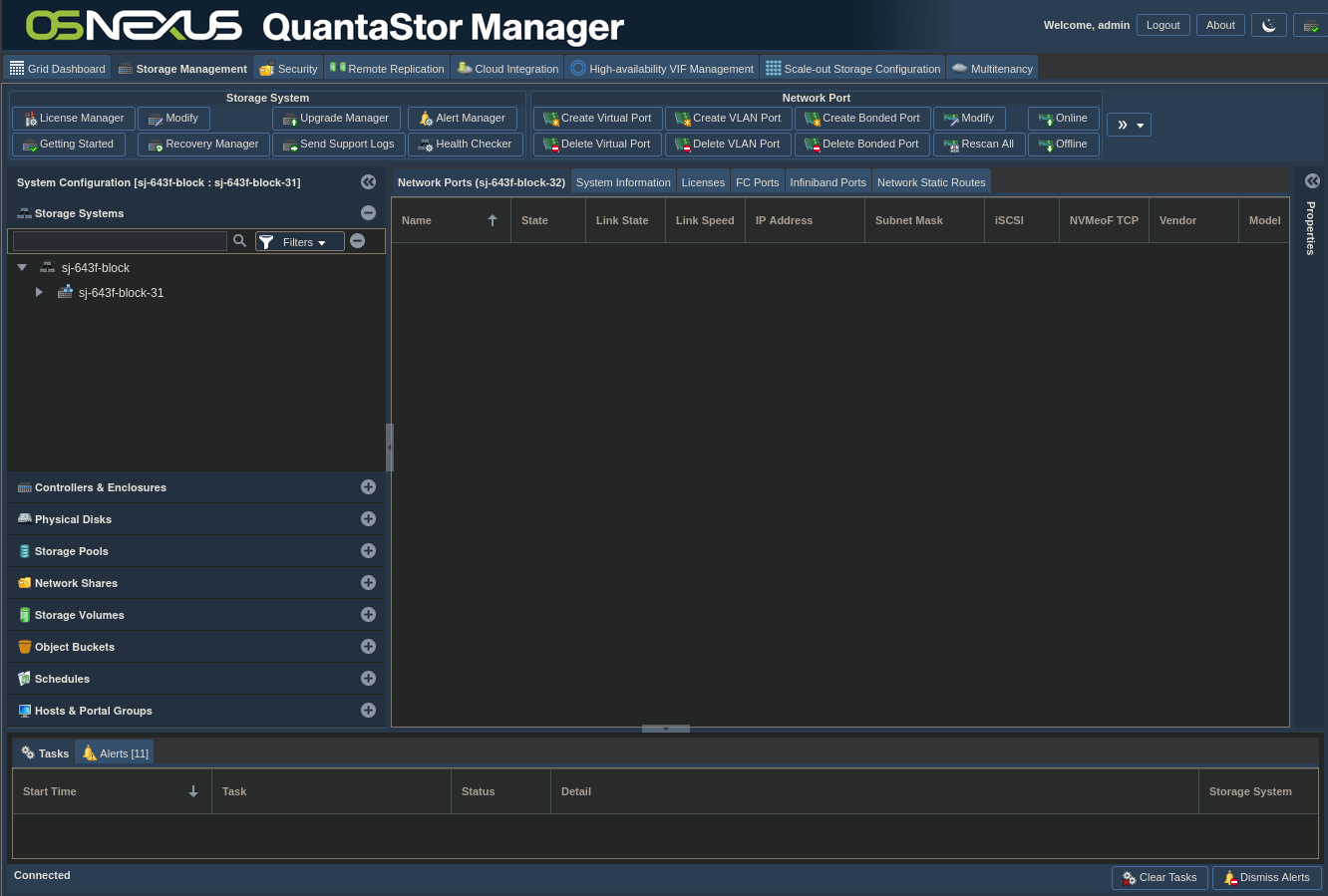
After logging into the QuantaStor web UI, you should see something similar to this. I have a single node in my storage grid, but you may not have a grid configured. In that case you’ll only see the node, not the node within the grid. That may be Greek to you at this point if you’re new to QuantaStor, but don’t worry about it as you won’t need it for our activity.
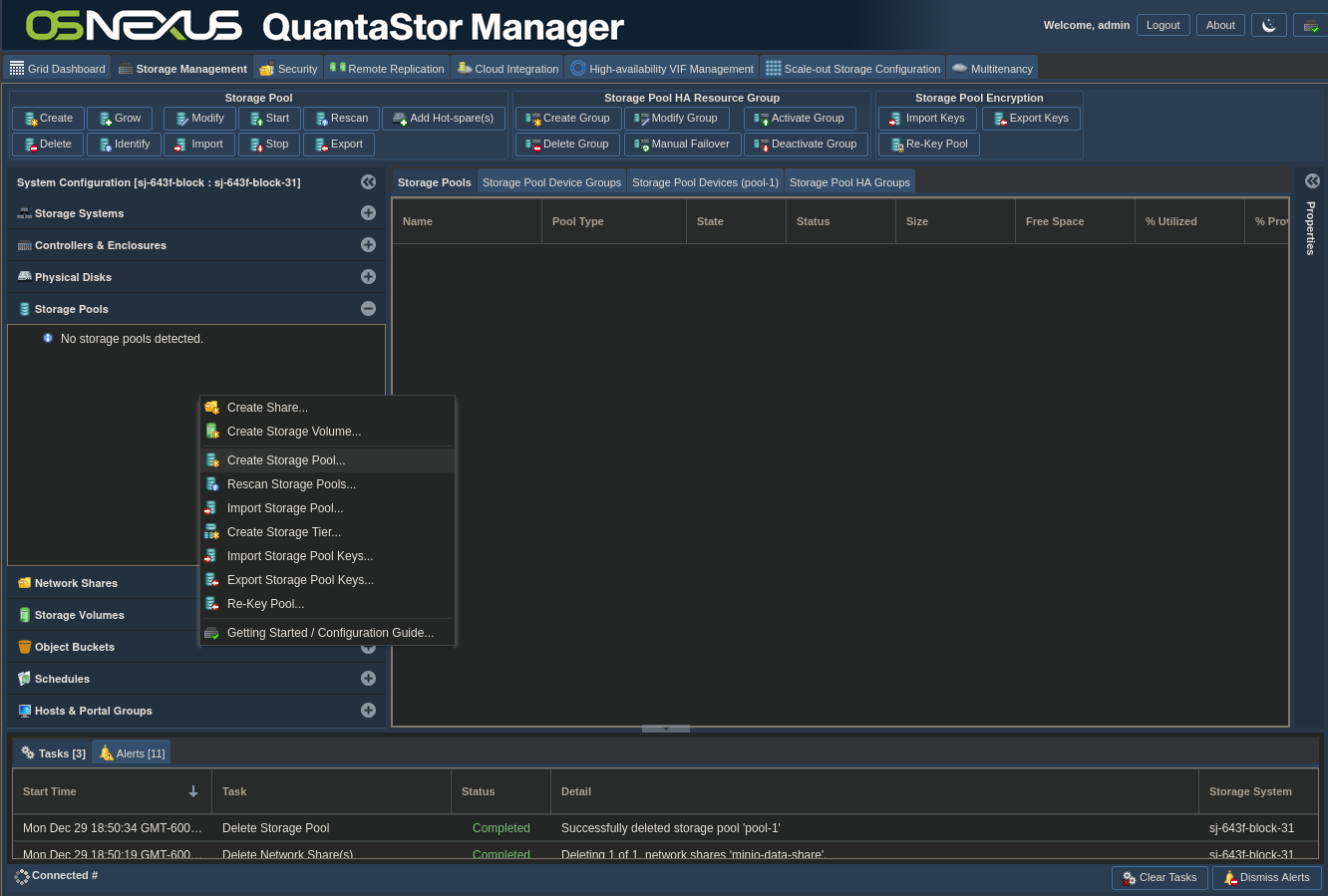
Click on the Storage Pools heading in the left Navigation Pane, then right-click on the Storage Pools heading or anywhere in the blank space in the Storage Pools section and left-click Create Storage Pool to begin the process of creating a Scale-Up (ZFS-based) storage pool.
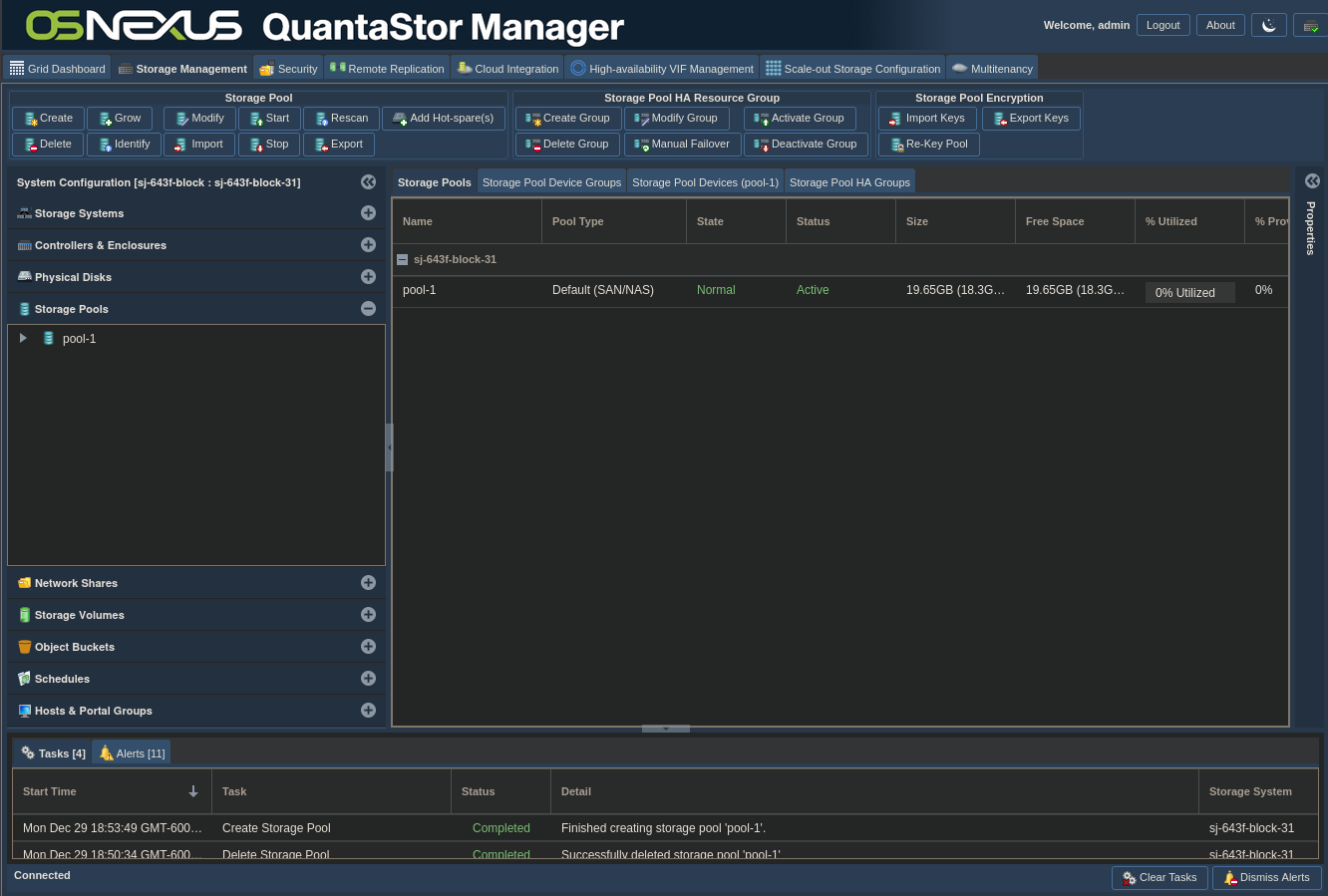
Since there are 4x identically sized drives connected to my VM, I’m going to use those for the pool. I left the defaults and checked the boxes for the 4 x 10GB drives, then clicked OK.

You’ll see the status of the task in the Task pane at the bottom of the window. You’ll know it’s done when the status of the Create Storage Pool task is Completed, and you’ll see your pool appear in the Storage Pools section of the Navigation pane.
Create the Network Share
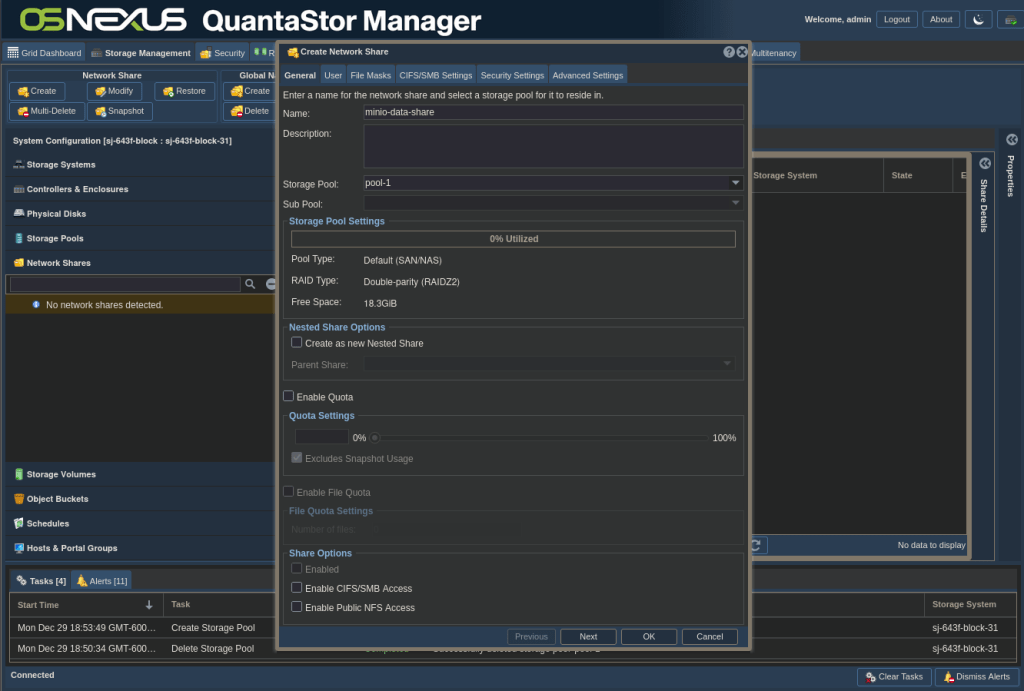
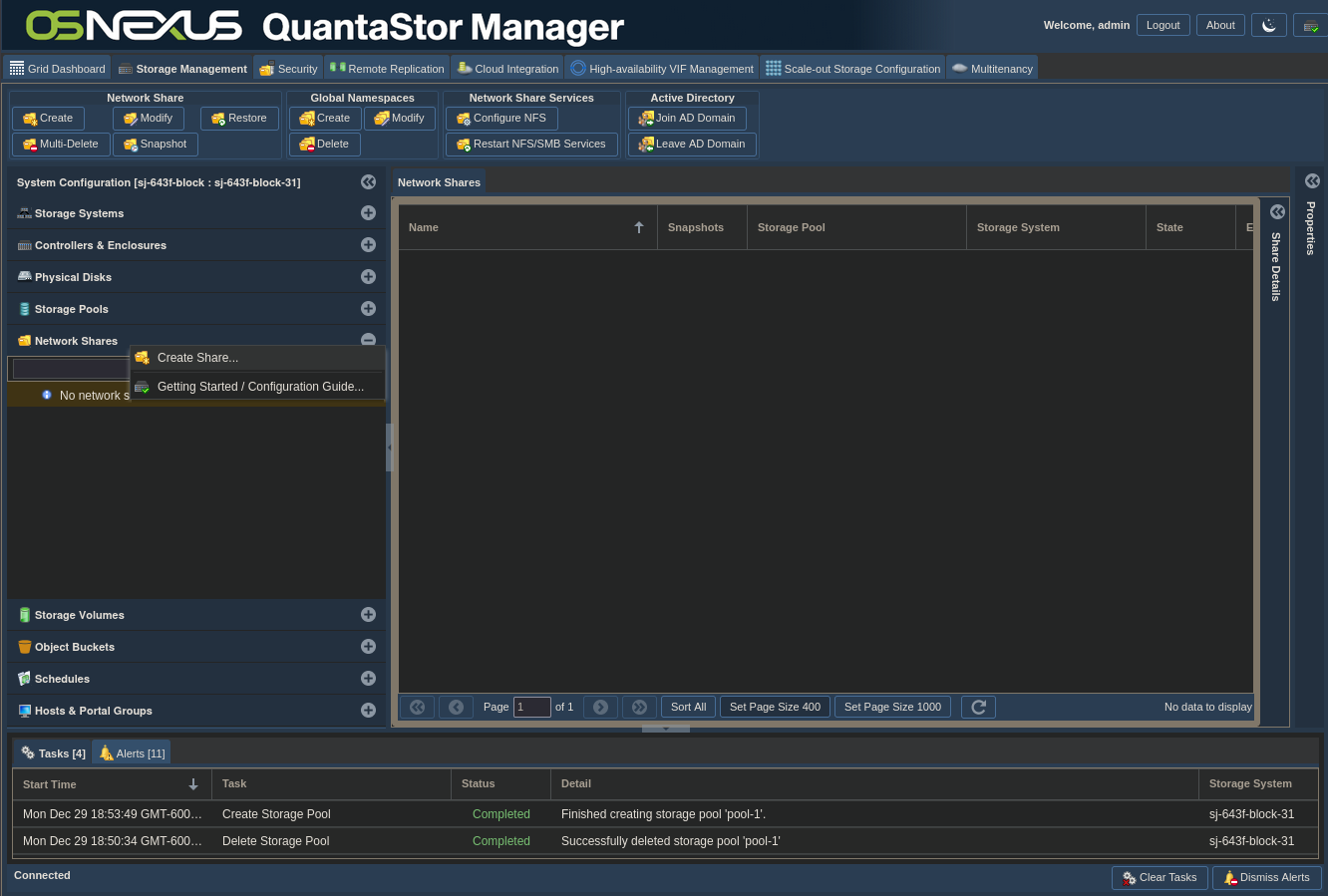
Now that we have a Storage Pool created we need to create a Network Share in that pool. In the Navigation pane, click on Network Shares and then right-click the Network Shares heading or the blank space in the Network Shares section and left-click Create Share.
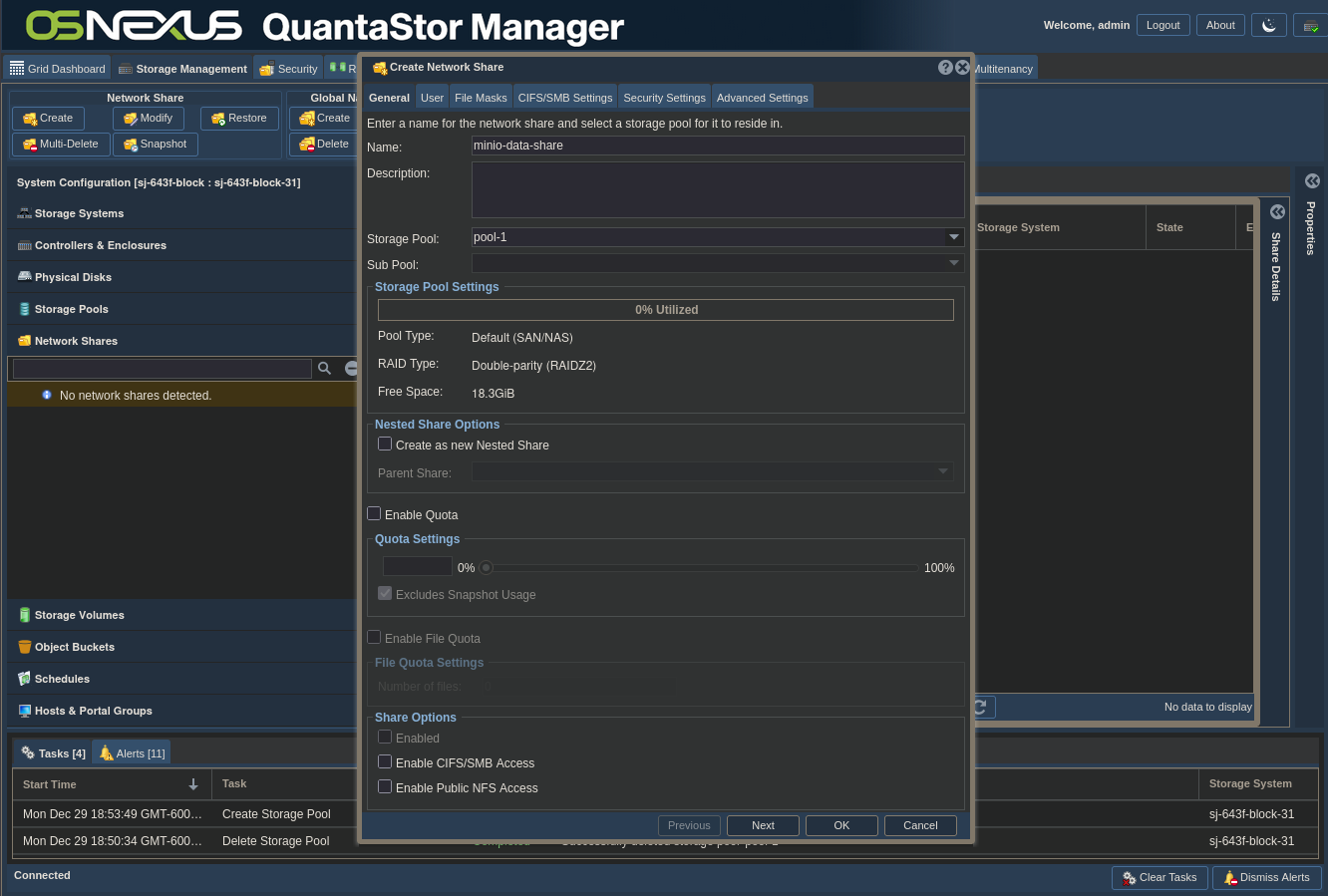
In the Create Network Share dialog I gave my share the name of “minio-data-share” and left the remaining defaults with the exception of the Share options where I unchecked all 3 options. Since I’m only wanting this share to be used for MinIO object storage through the container and don’t want to share it out using NFS or SMB from the QuantaStor node, disabling it makes some sense. The share structure will still be created and we can still use it for our activity locally on the node.
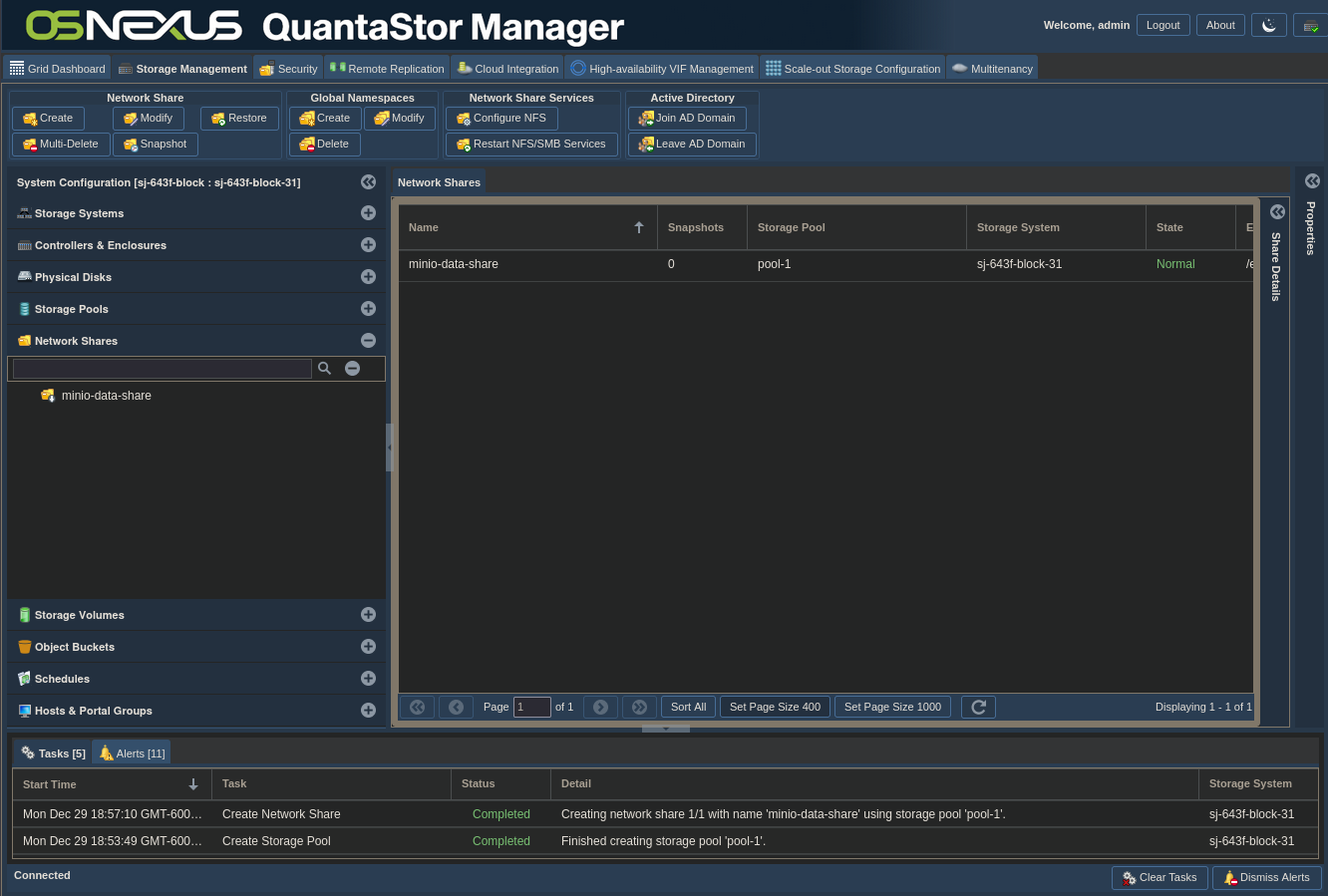
Again, watch the Tasks pane and the Network Shares section of the Navigation pane for completion.
Create a Resource Group
With those foundational structures in place, now we’ll start down the path of creating the constructs required to integrate our MinIO service container with our network share. A Resource Group is a way of creating a relationship between disparate object types. In our case, we want to associate a network share with a service such that the two would be logically bound together. In a single node situation the association is so QuantaStor will manage the lifecycle of the service for us, but if we had two nodes clustered together and configured with High Availability (HA) such that the storage pool could be moved from one node to the other, the network share would move from one node to the other when the storage pool moved. Using a Resource Group in that case, we’re telling QuantaStor that we want the service tied to the network share such that if the storage failed over to the other node the service will be brought up when the network share is brought up.
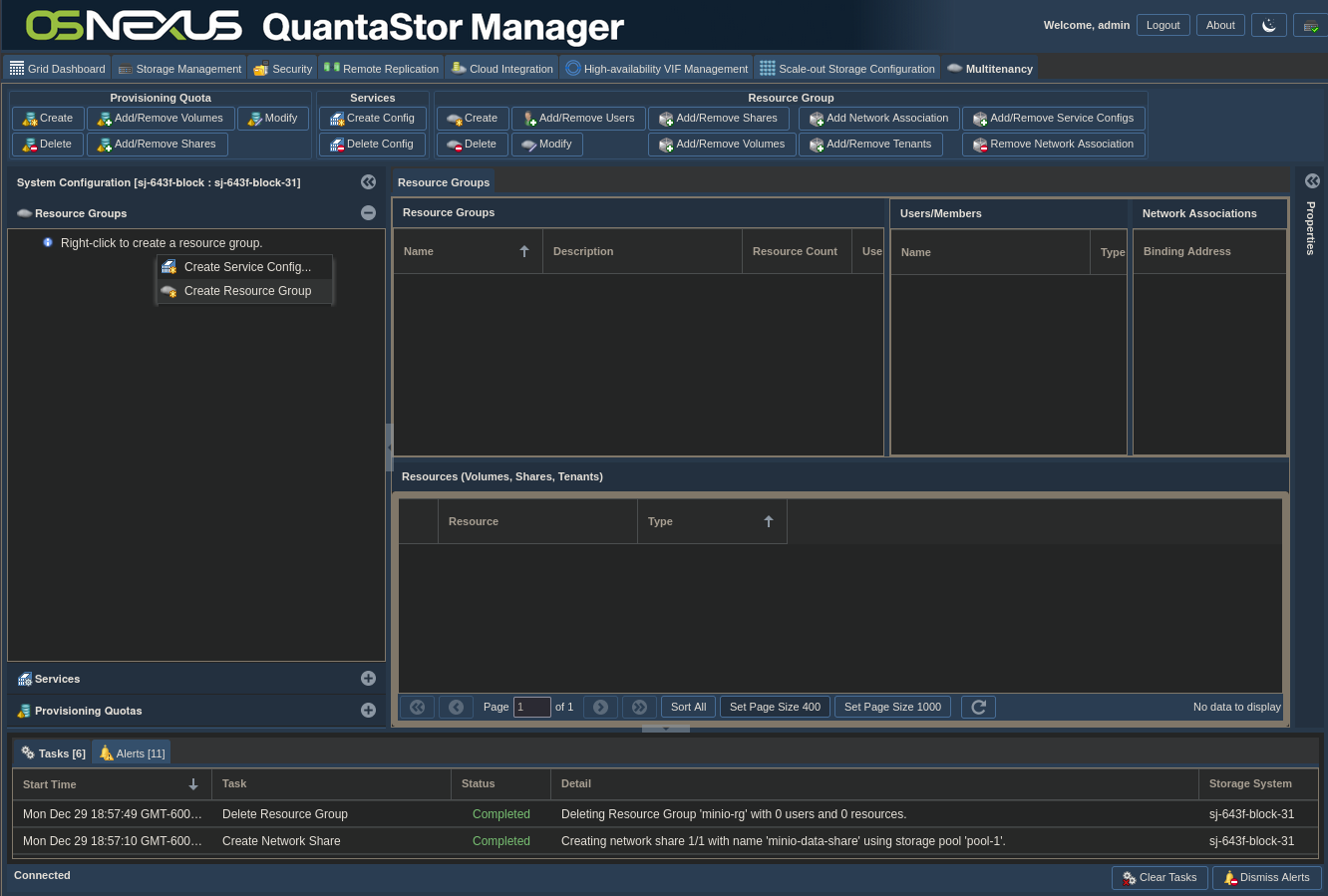
Select the Multitenancy tab in the UI and right-click on the Resource Group heading or in the empty space in the Resource Group section and left-click Create Resource Group.
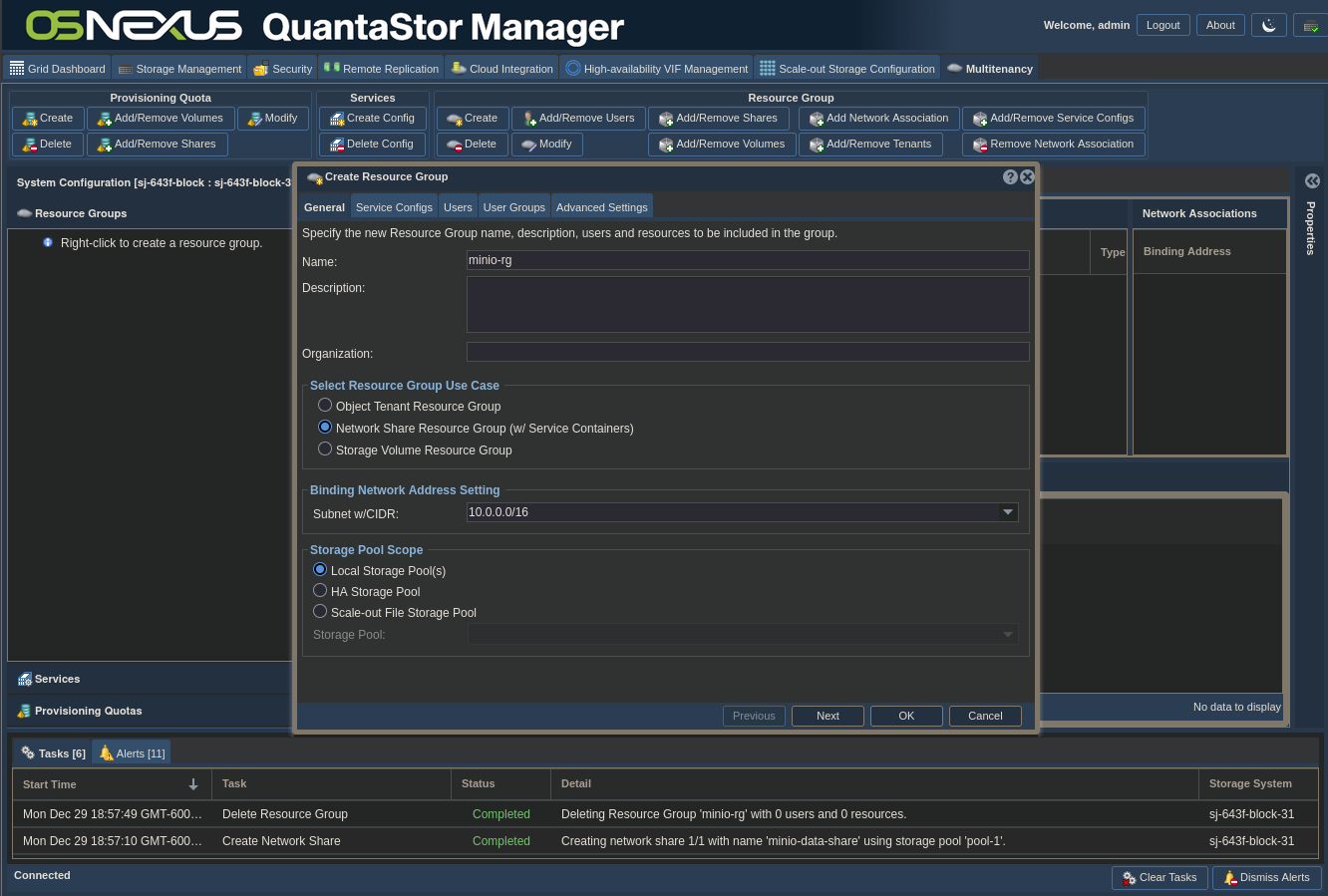
In the Create Resource Group dialog, set the name to “minio-rg”, select Network Share Resource Group (w/ Service Containers) for the Use Case and select Local Storage Pool for the Scope, then click OK.
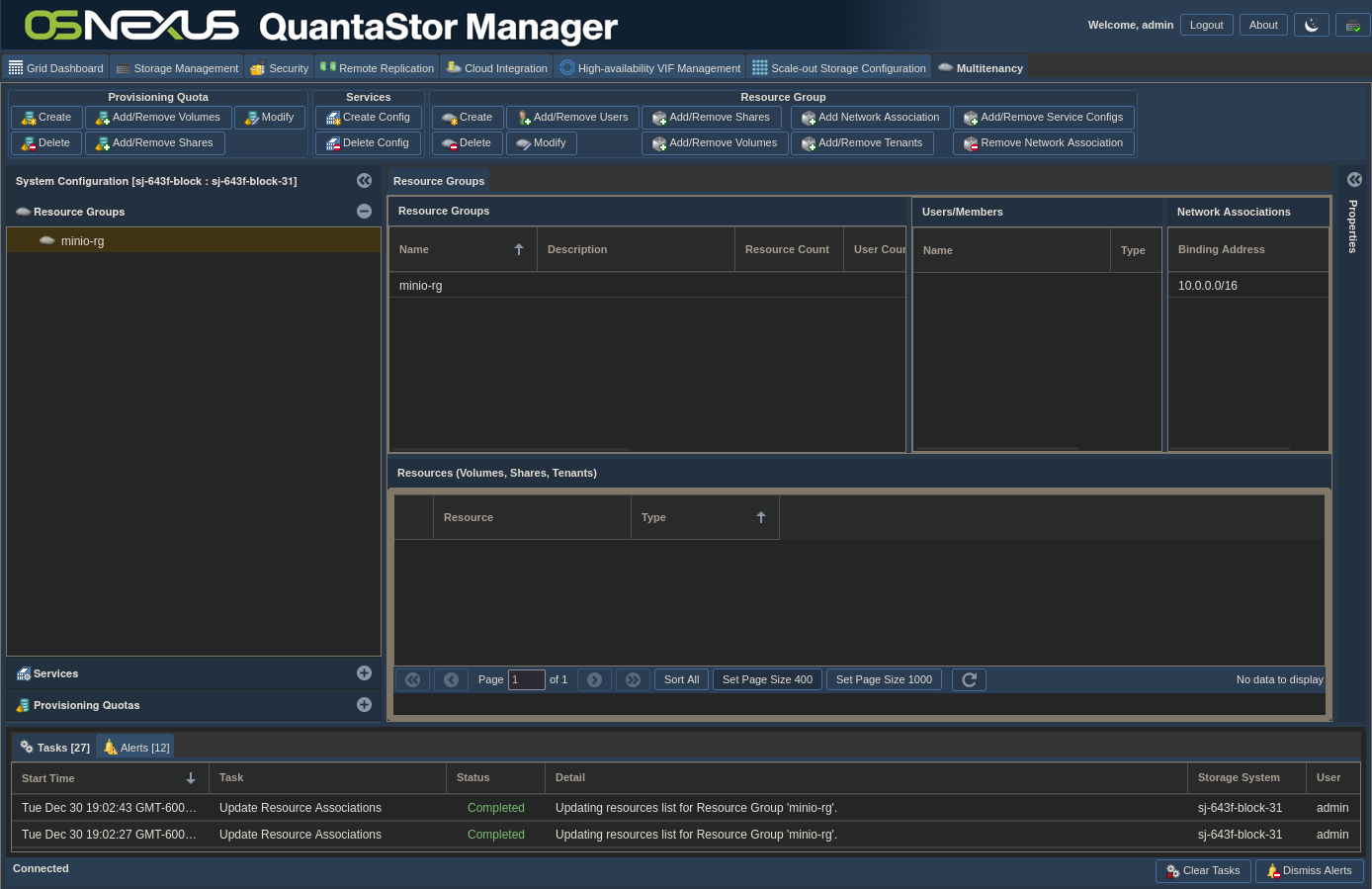
This activity created the Resource Group but didn’t add the service or the network share to it. We could add the network share at this point, but we haven’t given QuantaStor the configuration it needs to create and use a MinIO service. We’ll do the service configuration next, but I’m specifically holding off on adding the network share to illustrate a point later on.
Configure a Service Config
Now we’re going to get into the weeds of creating Service containers. The first step in the process below is to download the files for this activity. You can download them directly on the QuantaStor node using the process below but wanted to also have the link outside of the process output. To begin, start a SSH session to the QuantaStor node and run the commands colored cyan below.
jordahl@apollo:~$ ssh qadmin@10.0.18.31
qadmin@10.0.18.31's password:
Linux sj-643f-block-31 6.5.0-35-generic #35~22.04.1-Ubuntu SMP PREEMPT_DYNAMIC Tue May  7 09:00:52 UTC 2 x86_64 x86_64 x86_64 GNU/Linux
Ubuntu 22.04.4 LTS
OSNEXUS QuantaStor 7.0.0.053+next-ab272f7396

== System Info ==
Uptime: up 18 minutes
CPU: 6 cores
RAM: 7.74626 GB


 System information as of Tue Dec 30 01:04:23 AM UTC 2025

  System load:  0.23               Processes:               389
  Usage of /:   24.4% of 56.38GB   Users logged in:         0
  Memory usage: 18%                IPv4 address for ens192: 10.0.18.31
  Swap usage:   0%

Last login: Tue Dec 30 01:02:39 2025 from 10.0.0.1
qadmin@sj-643f-block-31:~$ curl -OL https://github.com/steve-jordahllabs/quantastor-blog-files/raw/refs/heads/main/qs_containerhandler_minio.tgz
qs_containerhandler_minio.tgz
qadmin@sj-643f-block-31:~$ tar xzf qs_containerhandler_minio.tgz
qadmin@sj-643f-block-31:~$ sudo -i
[sudo] password for qadmin:
root@sj-643f-block-31:~# cd /home/qadmin/
root@sj-643f-block-31:/home/qadmin# ls -l
total 16
-rw-r--r-- 1 qadmin qadmin 2905 Dec 29 22:19 qs_containerhandler_minio.conf
-rw-r--r-- 1 qadmin qadmin 5236 Dec 30 00:41 qs_containerhandler_minio.sh
-rw-rw-r-- 1 qadmin qadmin 2950 Dec 30 01:02 qs_containerhandler_minio.tgz
root@sj-643f-block-31:/home/qadmin# chown root:root qs_containerhandler_minio.[cs]*
root@sj-643f-block-31:/home/qadmin# chmod +x qs_containerhandler_minio.sh
root@sj-643f-block-31:/home/qadmin# ls -l
total 16
-rw-r--r-- 1 root   root   2905 Dec 29 22:19 qs_containerhandler_minio.conf
-rwxr-xr-x 1 root   root   5236 Dec 30 00:41 qs_containerhandler_minio.sh
-rw-rw-r-- 1 qadmin qadmin 2950 Dec 30 01:02 qs_containerhandler_minio.tgz
root@sj-643f-block-31:/home/qadmin# mv qs_containerhandler_minio.sh /opt/osnexus/quantastor/bin/
root@sj-643f-block-31:/home/qadmin# mv qs_containerhandler_minio.conf /opt/osnexus/quantastor/conf/
root@sj-643f-block-31:/home/qadmin# systemctl restart quantastor.service && tail -fn 0 /var/log/qs/qs_service.log | grep minio
{Tue Dec 30 01:08:18 2025, INFO, d3fff640:container_manager:112} Loading Container Service configuration from '/opt/osnexus/quantastor/conf/qs_containerhandler_minio.conf'
{Tue Dec 30 01:08:18 2025, INFO, d3fff640:container_manager:133} Processing universal container service configuration for 'minio'
{Tue Dec 30 01:08:18 2025, INFO, d3fff640:container_manager:966} Processing Container Service configuration file 'qs_containerhandler_minio.conf'
{Tue Dec 30 01:08:18 2025, INFO, d3fff640:container_manager:976} Loading Container Service configuration from '/opt/osnexus/quantastor/conf/qs_containerhandler_minio.conf'
{Tue Dec 30 01:08:18 2025, INFO, d3fff640:container_service_base:104} Container Image for 'minio/minio:latest' is already present, skipping.
^C
root@sj-643f-block-31:/home/qadmin#
Leave the SSH session up as we’ll come back to it shortly.
That last command DOES NOT start the MinIO service. We put the two files that dictate what parameters are required to use the service and how to run the service into the proper locations on the node. When we restarted quantastor.service we can see that QuantaStor found those configurations and they should be ready for use. In addition, QuantaStor also uses this opportunity to download the container image for minio. In my case, the image was already there from previous activities I was working on.
Note that when you restart quantastor.service it bounces the web UI, so anyone logged into the web UI will get the following and have to re-login once the service is back up.
The following file is the configuration file that we just positioned on QuantaStor with the interesting entries in cyan. This file dictates:
- What the service is
- How to run the service
- Where to store the configurations that are created
- What parameters are required from the user in order to use the service
───────┬───────────────────────────────────────────────────────────────────────────────────────────────────────────────────────────────────────────────────────────────
       │ File: qs_containerhandler_minio.conf
───────┼───────────────────────────────────────────────────────────────────────────────────────────────────────────────────────────────────────────────────────────────
   1   │ [global]
   2   │ # 'universal' type container service definition allows for dynamic definition of a containerized service
   3   │ type=universal
   4   │ # Friendly name for this containerized service
   5   │ name=MinIO Object Storage
   6   │ # Container framework
   7   │ container_type=docker
   8   │ # Container image name for this service
   9   │ container_image=minio/minio:latest
  10   │ # Service tag by which this service is identified
  11   │ tag=minio
  12   │ # where to map the bind mounts of the shares to for this container service
  13   │ map_shares_dest="/data"
  14   │ # script to handle the container lifecycle events for this service such as 'docker run' and post run actions
  15   │ container_handler_script="/opt/osnexus/quantastor/bin/qs_containerhandler_minio.sh"
  16   │ # Path to the file where the configuration options are saved for a given service definition, this can then be read by the handler script, {CCID} is replaced w
       │ ith the container config id
  17   │ config_options_output_file="/var/run/quantastor/containers/minio_config_options.{CCID}.conf"
  18   │
  19   │ #custom user definable options which are dynamically presented to the user via the WUI, each option must have a 'type' and a 'label' defined.
  20   │ config_option:minio_root_user:index=0
  21   │ config_option:minio_root_user:type=string_field
  22   │ config_option:minio_root_user:mandatory=true
  23   │ config_option:minio_root_user:hidden=true
  24   │ config_option:minio_root_user:default=minio_admin
  25   │ config_option:minio_root_user:label=MinIO Access Key/Username:
  26   │ config_option:minio_root_user:description=The root access key (username) for the MinIO instance.
  27   │
  28   │ config_option:minio_root_password:index=1
  29   │ config_option:minio_root_password:type=password_field
  30   │ config_option:minio_root_password:mandatory=true
  31   │ config_option:minio_root_password:hidden=true
  32   │ config_option:minio_root_password:label=MinIO Secret Key/Password:
  33   │ config_option:minio_root_password:description=The root secret key (password) for the MinIO instance.
  34   │
  35   │ config_option:minio_api_port:index=3
  36   │ config_option:minio_api_port:type=uint_field
  37   │ config_option:minio_api_port:label=MinIO API Port:
  38   │ config_option:minio_api_port:default=9000
  39   │ config_option:minio_api_port:range_min=1024
  40   │ config_option:minio_api_port:range_max=65535
  41   │ config_option:minio_api_port:mandatory=true
  42   │ config_option:minio_api_port:description=The port number for the S3 API service.
  43   │
  44   │ config_option:minio_console_port:index=4
  45   │ config_option:minio_console_port:type=uint_field
  46   │ config_option:minio_console_port:label=MinIO Console Port:
  47   │ config_option:minio_console_port:default=9001
  48   │ config_option:minio_console_port:range_min=1024
  49   │ config_option:minio_console_port:range_max=65535
  50   │ config_option:minio_console_port:mandatory=true
  51   │ config_option:minio_console_port:description=The port number for the MinIO Web Console.
You don’t have to modify the config in order to use the MinIO service, but if you wanted to modify the QuantaStor web UI that we’ll show later you could tweak this file. In addition, if you wanted to make your own service, creating a conf file like this would be a requirement.
Test the Container (Optional)
Now we’re going to break from configuring the Service Config for a bit to validate that things are going to work as expected. This section is optional but I’m putting it in here as a reference for those that are going to develop their own QuantaStor Service Containers for other services. Below we’re going to manually start the container via the included script and go over some validation steps. If you’re just here for the popcorn (ie just need MinIO setup) you can skip all this and jump to the next section on adding a new Service Configuration for MinIO now that we have the plug-in module installed.
The other file we positioned, qs_containerhandler_minio.sh, is a bash script that QuantaStor will run to start the MinIO service (start the container). To make sure it’s working properly we should test the script and the contiainer.
Back in the SSH session, complete the following:
root@sj-643f-block-31:~# cd /opt/osnexus/quantastor/bin/

### This will test the script to validate the docker run command it builds
### I formatted the output for readability
root@sj-643f-block-31:/opt/osnexus/quantastor/bin# ./qs_containerhandler_minio.sh run-container --test \
        -c myminio \
        -b 0.0.0.0 \
        -s /export/minio-data-share \
        -d /data \
        -i minio/minio:latest \
        -o "minio_root_user:5POYNLT1P11QYC8PXAMB,minio_root_password:R1t2HAu2zDPqvzUPJhxemCbfCnztl9EcYs8I5i68"
TEST MODE: Action [Run Container]
COMMAND: /usr/bin/docker run --restart=always -d \
        -p 0.0.0.0:9000:9000 \
        -p 0.0.0.0:9001:9001 \
        -e MINIO_ROOT_USER=5POYNLT1P11QYC8PXAMB \
        -e MINIO_ROOT_PASSWORD=R1t2HAu2zDPqvzUPJhxemCbfCnztl9EcYs8I5i68 \
        --mount type=bind,source=/export/minio-data-share/minio-data-share,target=/data,bind-propagation=rslave \
        --name myminio \
        minio/minio:latest server /data --console-address :9001

### Running the script for real (no --test)
### If there's a Docker admission issue (ports in use, volume mapping errors) you'll get that as output
root@sj-643f-block-31:/opt/osnexus/quantastor/bin# ./qs_containerhandler_minio.sh run-container \
        -c myminio \
        -b 0.0.0.0 \
        -s /export/minio-data-share \
        -d /data \
        -i minio/minio:latest \
        -o "minio_root_user:5POYNLT1P11QYC8PXAMB,minio_root_password:R1t2HAu2zDPqvzUPJhxemCbfCnztl9EcYs8I5i68"

{Tue Dec 30 01:34:00 AM UTC 2025, INFO, qs_containerhandler_minio} Running container 'myminio' with command '/usr/bin/docker run --restart=always -d -p 0.0.0.0:9000:9000 -p 0.0.0.0:9001:9001 -e MINIO_ROOT_USER=5POYNLT1P11QYC8PXAMB -e MINIO_ROOT_PASSWORD=R1t2HAu2zDPqvzUPJhxemCbfCnztl9EcYs8I5i68 --mount type=bind,source=/export/minio-data-share,target=/data,bind-propagation=rslave --name myminio minio/minio:latest server /data --console-address :9001'.
69a787e73857d02157e8947b007a6e993201fbbdbf0a96328c7a2e2b5c269d39

### Validate that the container is properly running
### If you see something else in STATUS there's a problem with launching the app itself IN the container
root@sj-643f-block-31:/opt/osnexus/quantastor/bin# docker ps
CONTAINER ID   IMAGE                COMMAND                  CREATED              STATUS              PORTS                              NAMES
69a787e73857   minio/minio:latest   "/usr/bin/docker-ent…"   About a minute ago   Up About a minute   0.0.0.0:9000-9001->9000-9001/tcp   myminio
### Try going to http://{host IP address}:9001 to validate


### Assuming things are good, stop and delete the test container
root@sj-643f-block-31:/opt/osnexus/quantastor/bin# docker stop myminio
myminio
root@sj-643f-block-31:/opt/osnexus/quantastor/bin# docker rm myminio
myminio
root@sj-643f-block-31:/opt/osnexus/quantastor/bin#
This is a good test, but does not truly test against the real world values that QuantaStor will use when running the service. After successfully testing, when I first had QuantaStor run the script there was an issue with the volume path that QuantaStor passed to the container. Docker used it properly but MinIO had an issue with it and therefore threw an error and went into a reboot loop. Here are the steps I took to figure it out (CLI commands):
root@sj-643f-block-31:~# docker ps
CONTAINER ID   IMAGE                COMMAND                  CREATED          STATUS                          PORTS     NAMES
30a7b78c0e88   minio/minio:latest   "/usr/bin/docker-ent…"   53 seconds ago   Restarting (1) 14 seconds ago             minio-f8edf9-fbd936
Using docker ps I identified two things; that the container was in a reboot error loop, and the name of the actual container (last column).
root@sj-643f-block-31:~# docker logs minio-f8edf9-fbd936
FATAL Invalid command line arguments: Cross-device mounts detected on path (/data) at following locations [/data/minio-data-share]. Export path should not have any sub-mounts, refusing to start.
      > Please check the endpoint
      HINT:
        Single-Node modes requires absolute path without hostnames:
      Examples:
         $ minio server /data/minio/ #Single Node Single Drive
         $ minio server /data-{1...4}/minio # Single Node Multi Drive
...
Using docker logs I determined that MinIO was having an issue with how the volume was being mounted. But what was actually being mounted??
root@sj-643f-block-31:~# docker inspect minio-f8edf9-fbd936
[
    {
        "Id": "30a7b78c0e88790f78936030cd0cfb521b0528e3a1d3b1f13a6e15e52a0c017b",
        "Created": "2025-12-30T00:08:15.905779517Z",
        "Path": "/usr/bin/docker-entrypoint.sh",
        "Args": [
            "server",
            "/data",
            "--console-address",
            ":9001"
        ],
        "State": {
            "Status": "exited",
            "Running": false,
            "Paused": false,
            "Restarting": false,
            "OOMKilled": false,
            "Dead": false,
            "Pid": 0,
            "ExitCode": 1,
            "Error": "",
            "StartedAt": "2025-12-30T00:10:12.082622399Z",
            "FinishedAt": "2025-12-30T00:10:13.352098659Z"
        },
...
        "Mounts": [
            {
                "Type": "bind",
                "Source": "/mnt/containers/fbd936a0-b129-29f8-cf48-16003ed18fd6/minio/f8edf997-7dd9-b4a2-0fa8-9e9f2a4d6a19/shares",
                "Destination": "/data",
                "Mode": "",
                "RW": true,
                "Propagation": "rslave"
            }
        ],
...
Ahh… There’s the problem! In our testing we passed /exports/minio-data-share as the volume path to map into the container. I expected QuantaStor to do something similar, but instead it was passing one level higher to be able to account for passing multiple shares to the container. Let’s look at this way:
root@sj-643f-block-31:~# tree /mnt/containers/
/mnt/containers/
├── fbd936a0-b129-29f8-cf48-16003ed18fd6
│   └── minio
│       └── f8edf997-7dd9-b4a2-0fa8-9e9f2a4d6a19
│           └── shares    ### This was the actual path
│               └── minio-data-share    ### I expected this to be the path
Since our error mentioned “Cross-device mounts…” and “… sub-mounts…”, let’s take a look at our mountpoints with respect to the minio-data-share:
root@sj-643f-block-31:~# mount | grep minio
qs-d54bf1dd-e957-f87b-6b56-ecb46aca5a43/minio-data-share on /mnt/storage-pools/qs-d54bf1dd-e957-f87b-6b56-ecb46aca5a43/minio-data-share type zfs (rw,relatime,xattr,posixacl,casesensitive)
qs-d54bf1dd-e957-f87b-6b56-ecb46aca5a43/minio-data-share on /export/minio-data-share type zfs (rw,relatime,xattr,posixacl,casesensitive)
qs-d54bf1dd-e957-f87b-6b56-ecb46aca5a43/minio-data-share on /mnt/containers/fbd936a0-b129-29f8-cf48-16003ed18fd6/minio/f8edf997-7dd9-b4a2-0fa8-9e9f2a4d6a19/shares/minio-data-share type zfs (rw,relatime,xattr,posixacl,casesensitive)
There’s the culprit. So MinIO isn’t going to start if the directory passed into /data has submounts in it. That’s fine since I wanted the directory one level deeper to be used. But the result this made me aware of is how QuantaStor wants to pass shares to services and because of this nuance I needed to adjust the qs_containerhandler_minio.sh script to accommodate.
Although the inner workings of qs_containerhandler_minio.sh are outside of the scope of this article (even though it’s listed at the end), there’s something interesting that I added for debugging if you get really deep or are just interested in learning how the script works. Near the top of the script are the following two lines:
# exec 1>/var/log/qs/debug_minio_container 2>&1
# set -x
Uncommenting those lines will send the debug output of the script to /var/log/qs/debug_minio_container. This can be examined to determine what the inner logic of this script is doing.
Configure a Service Config (continued)
We’ve now positioned the configuration files required to create the service and we’ve validated that the script and container are going to do what we want. Now let’s get back to the GUI to continue our activity. One point that I want to make here is that there are two distinct steps here:
- Creating a Service Config
- Associating a Service Config to a Resource Group
What we’re doing now is the creation. The association will be handled in the next section.
In the Multitenancy tab, click on the Resource Groups section in the Navigation pane, then right-click the Resource Groups heading or in the blank space in the Resource Groups section and left-click Create Service Config.
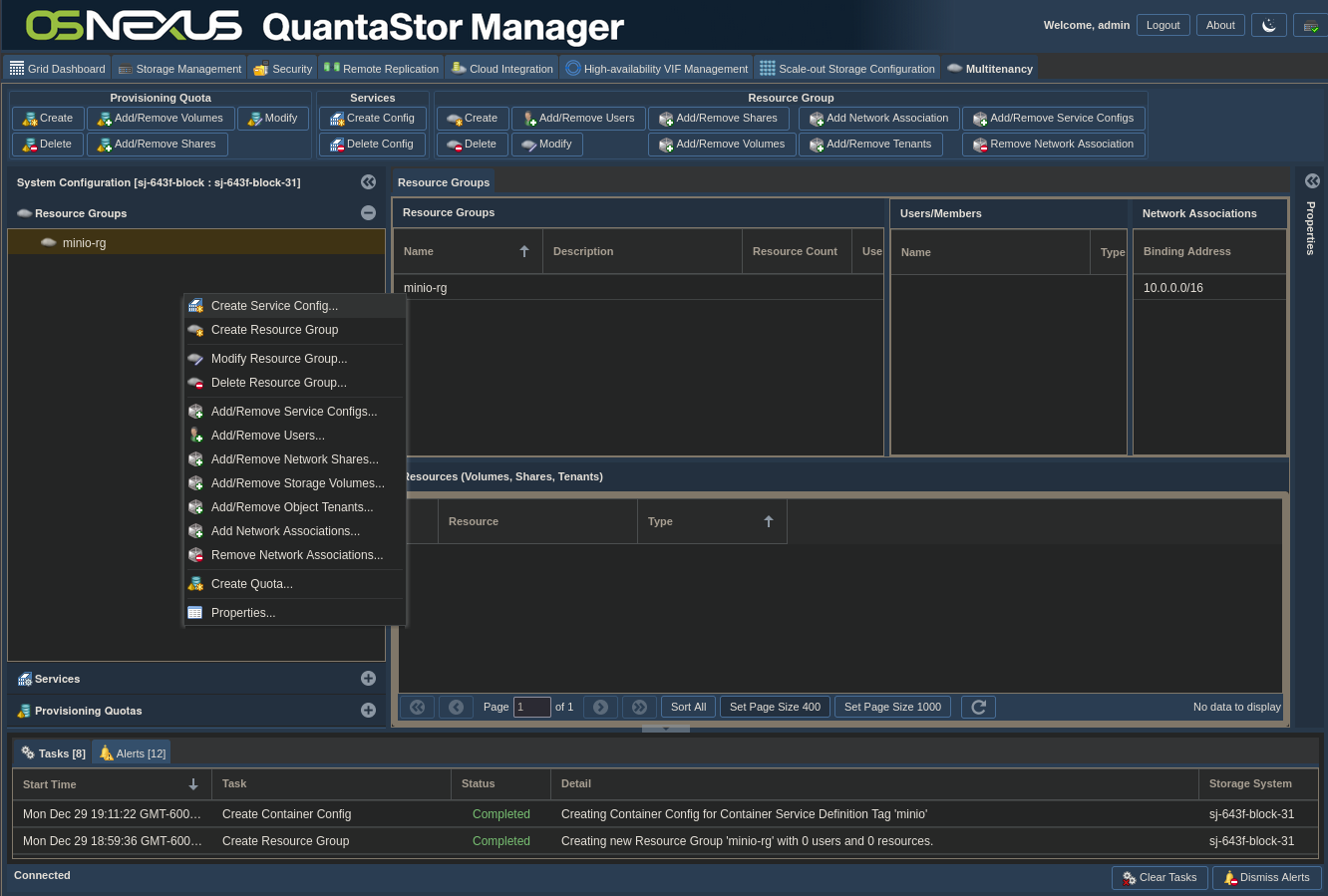
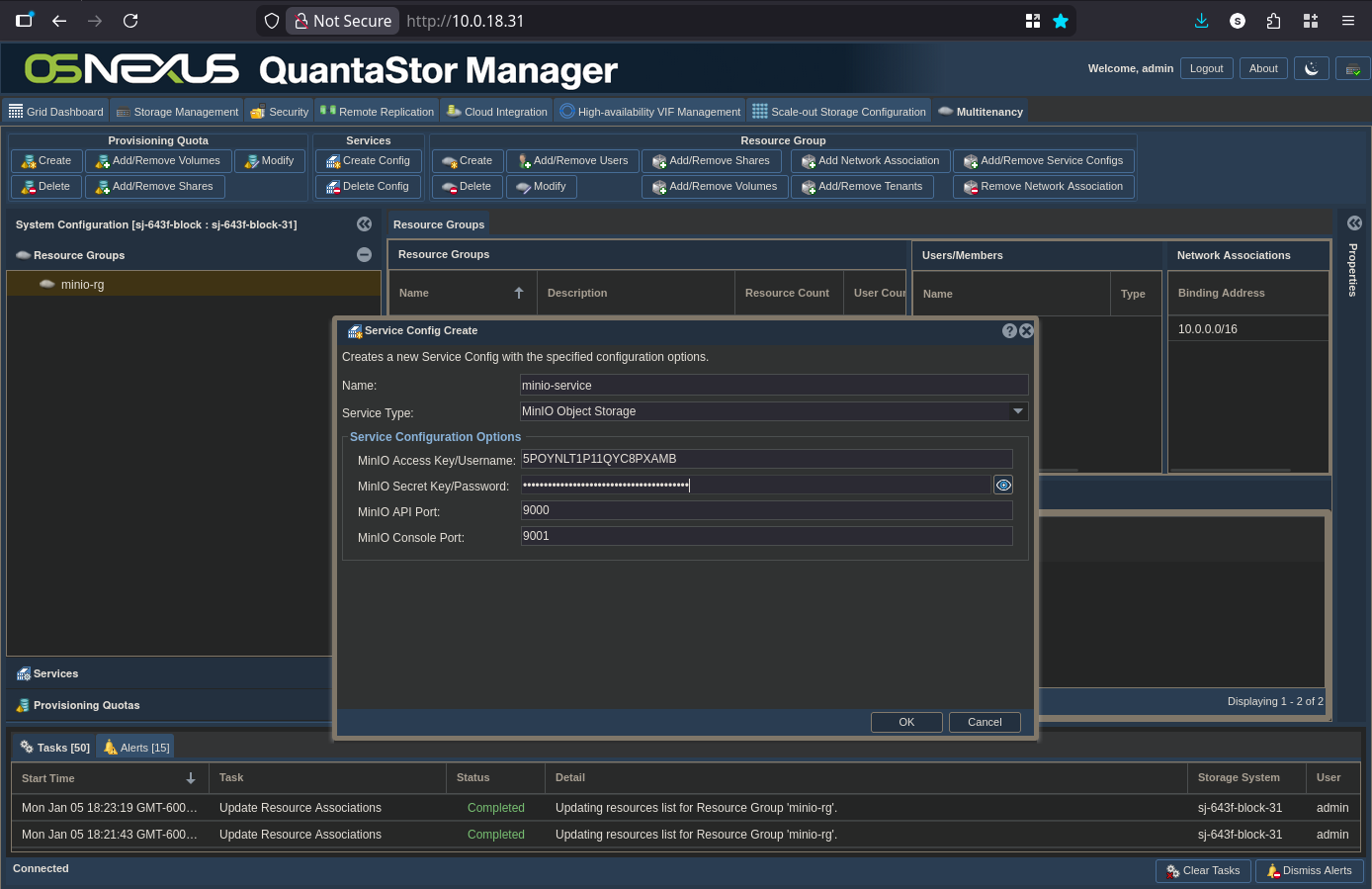
The Service Config Create dialog is where we’ll find the result of implementing the qs_containerhandler_minio.conf file. Name your service “minio-service” and then select MinIO Object Storage for the Service Type. Once selected, all of the fields defined in the conf file appear for you to configure. I pulled access and secret keys from another activity I did and reused them here, but the Access Key is equivalent to a username and the Secret Key a password, so you could use traditional values if you want. Once configured to your liking, click OK.
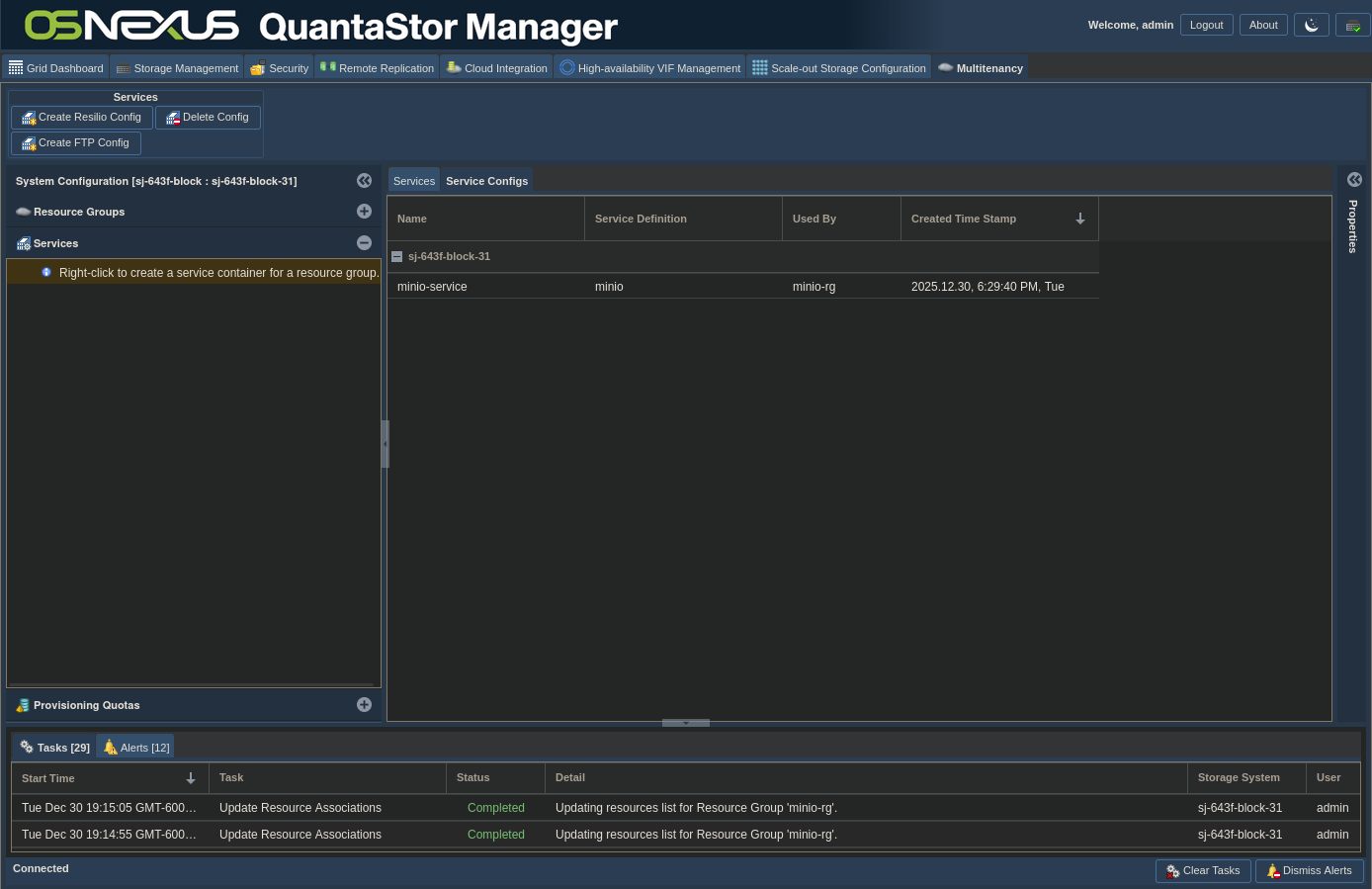
The Service Configs are kind of buried in the web UI. After we add the Service Config to the Resource Group, the Resource Groups section WILL show that the Service Config is part of the Resource Group. But if you remove the Service Config from the Resource Group IT WILL NOT DELETE the Service Config, it will just remove the association. In the Multitenancy tab > Services section, the right pane has tabs. If you select the Service Configs tab you’ll be able to manage them.
As an aside, after removing the Service Config from a Resource Group and then deleting the Service Config, in my instance the Docker container was not stopped nor removed. If your intent is to get rid of it you may need to go to the CLI and use Docker commands to do so.
Add the Service Config to the Resource Group
Now we’re to the final stage, finishing the config of the Resource Group. To illustrate when activity occurs, I’m monitoring the qs_service.log file to see when the container is actually created as a result of making Resource Group associations. You don’t need to do this if you don’t want to, but in the SSH session we left open run the following:
root@sj-643f-block-31:/home/qadmin# tail -fn 0 /var/log/qs/qs_service.log | grep minio
This won’t show anything because there is nothing MinIO-related going on yet. Just let it sit while you continue.
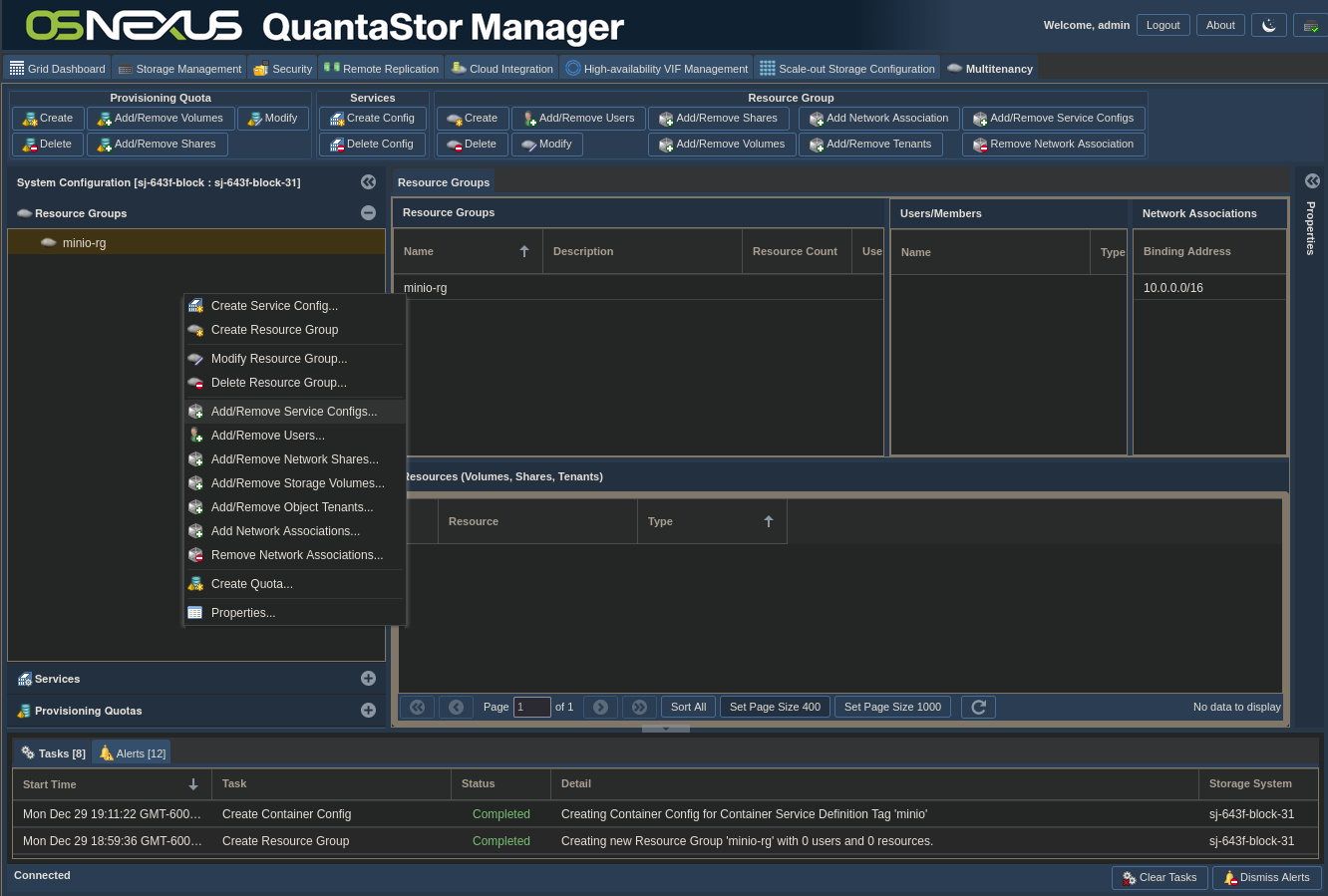
In the Multitenancy tab, in the Resource Groups section, right-click the minio-rg Resource Group and select Add/Remove Service Configs.
Make sure the minio-rg Resource Group is selected and check the box next to minio-service and click OK.
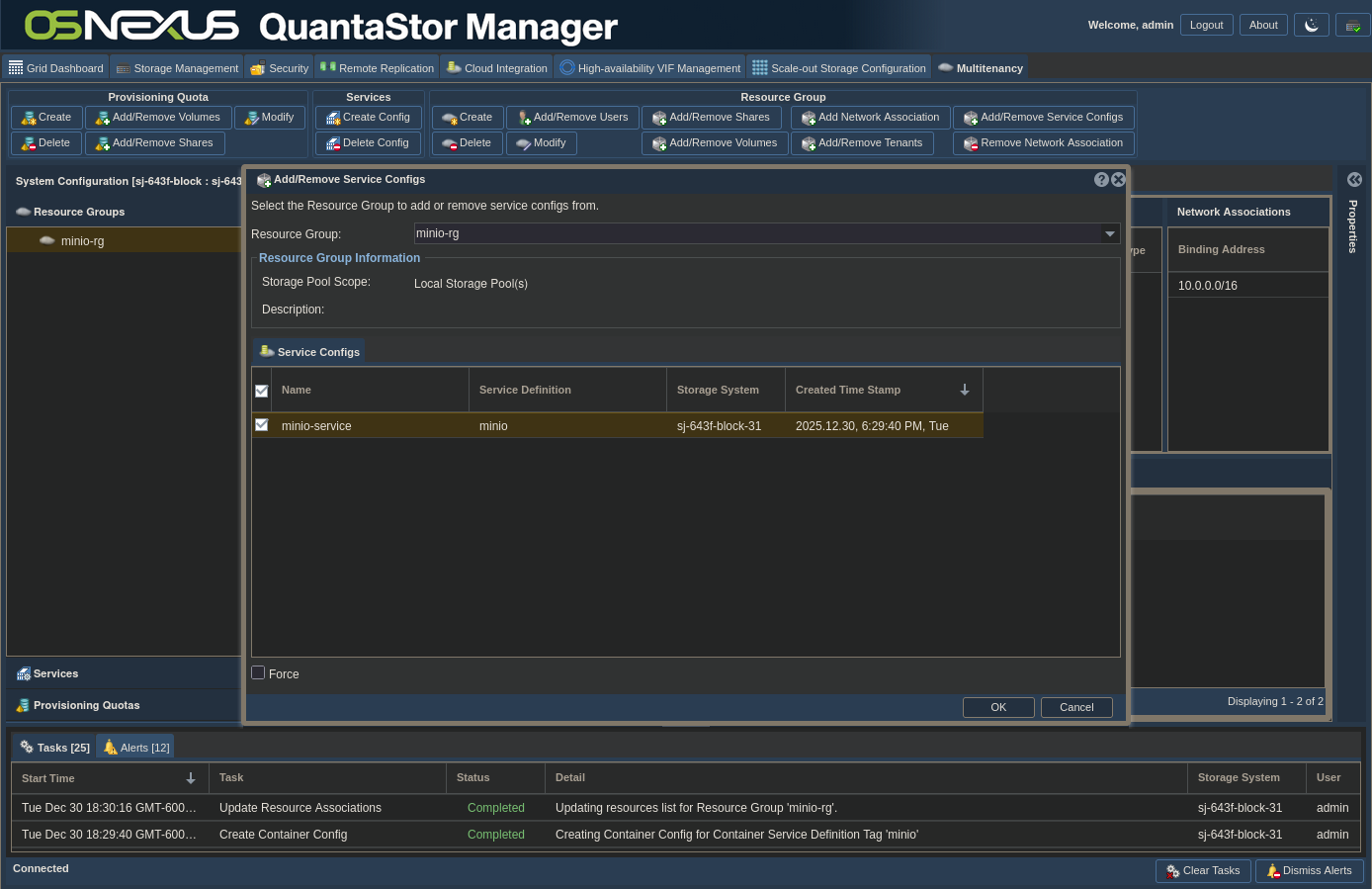
The association is made:
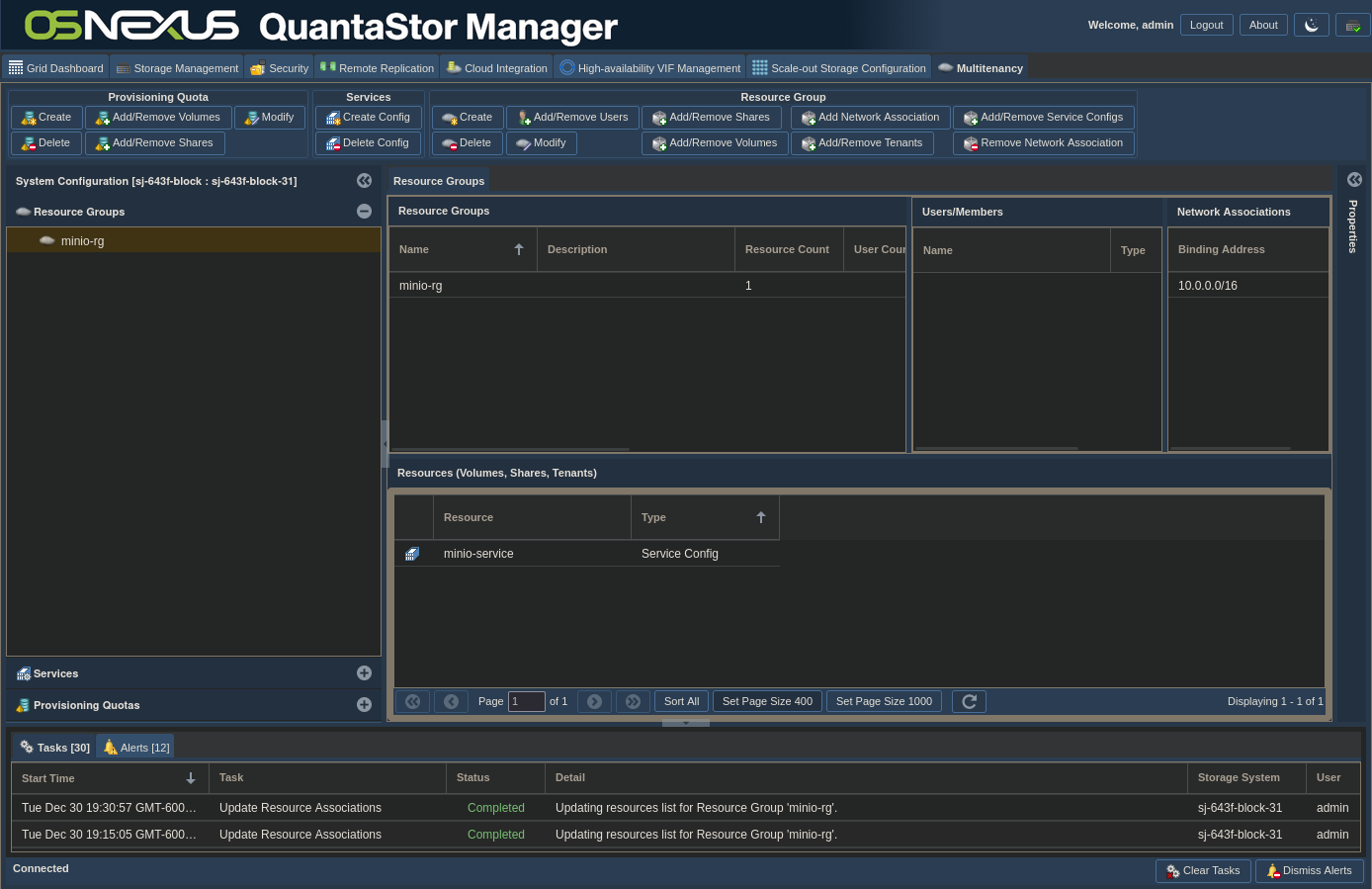
But in the logs we see… Nada… Nothing…
root@sj-643f-block-31:/home/qadmin# tail -fn 0 /var/log/qs/qs_service.log | grep minio
That’s actually expected. Our Resource Group only has the service in it and no other object to apply it to. We need to add our Network Share for any magic to happen. Right-click the minio-rg Resource Group and left-click Add/Remove Network Shares.
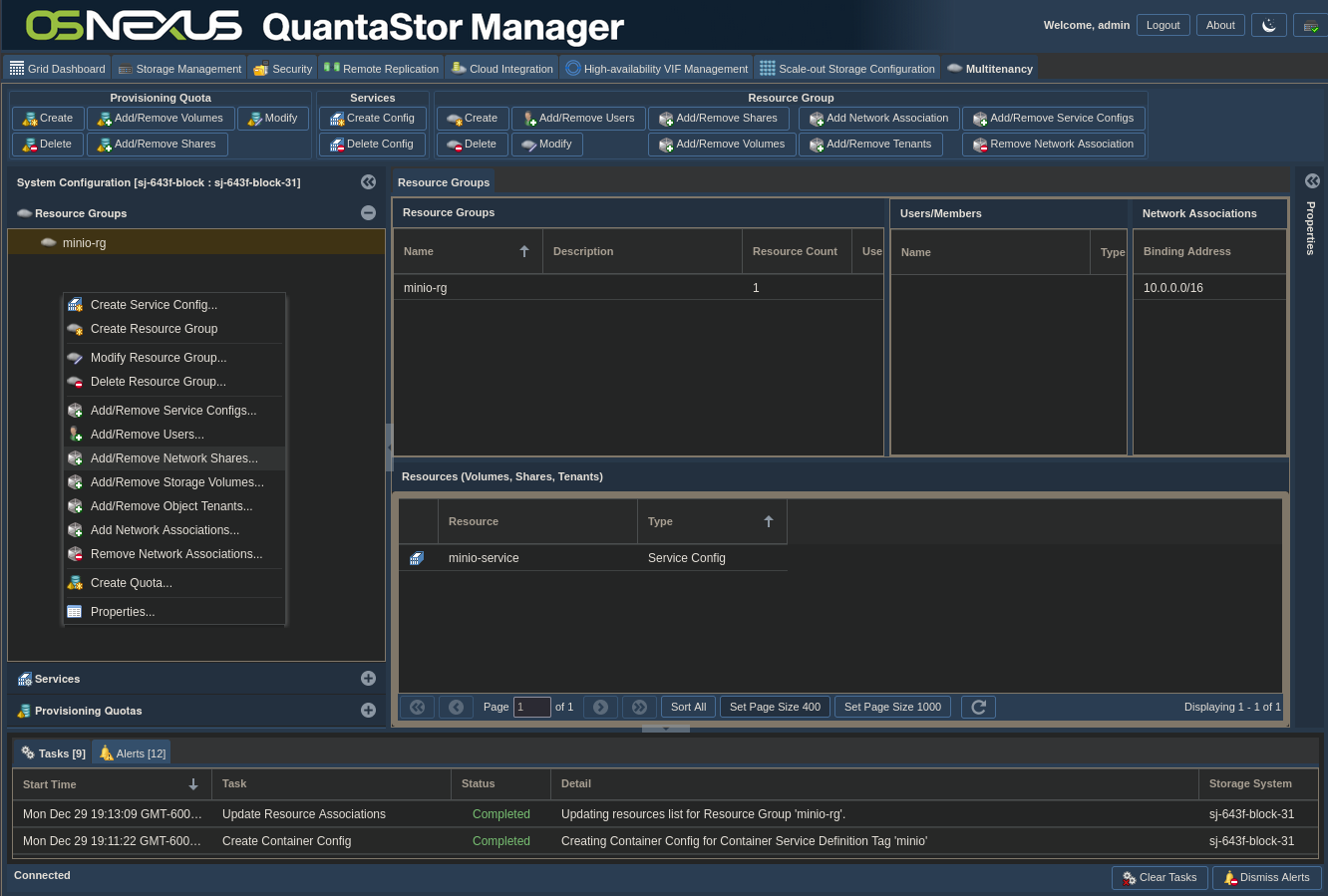
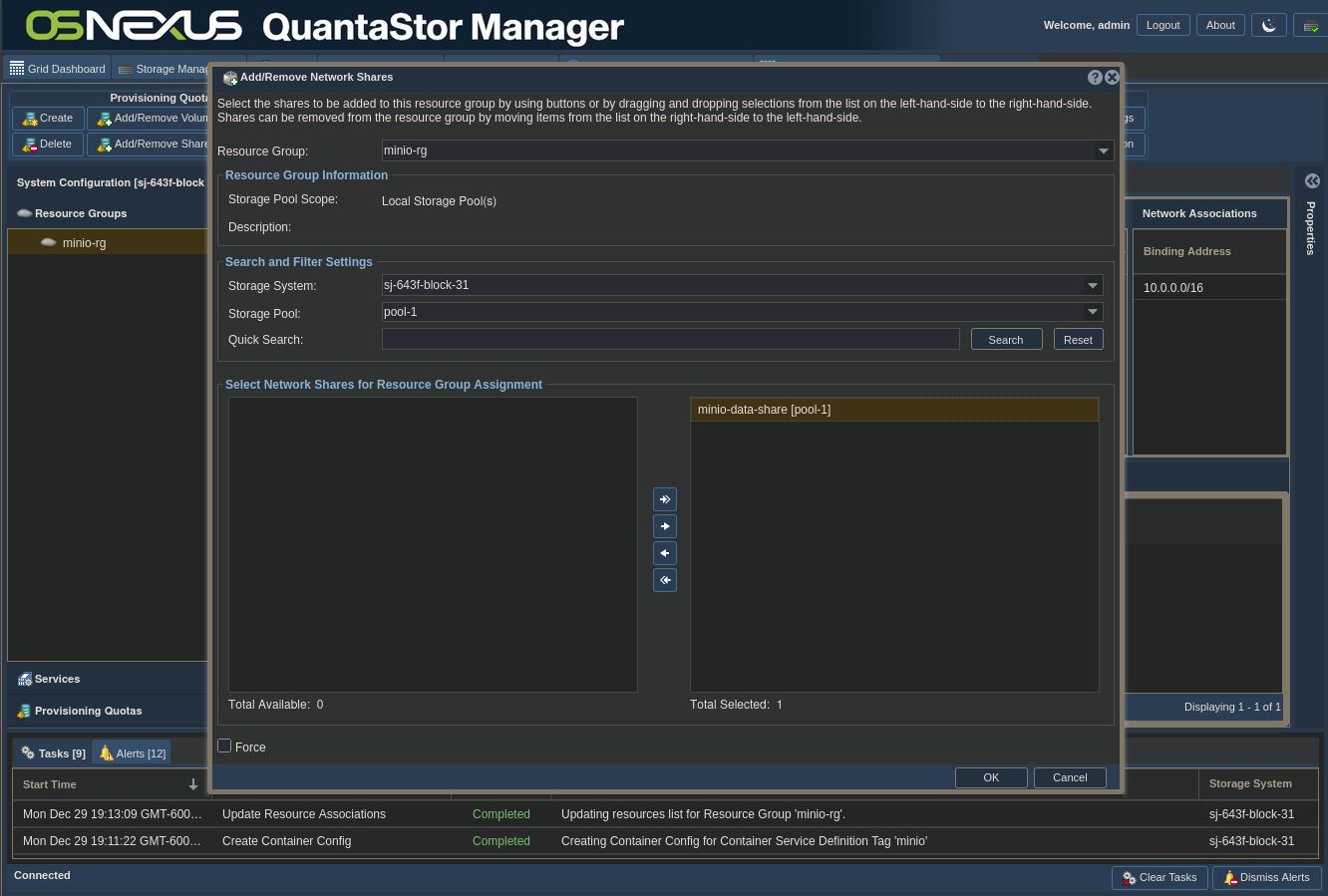
In the Add/Remove Network Shares dialog, select minio-data-share on the left and click the right arrow button to move the share from the Available pane to the Selected pane. Then click OK.
And now our Resource Group is fully configured with both a service and a share.
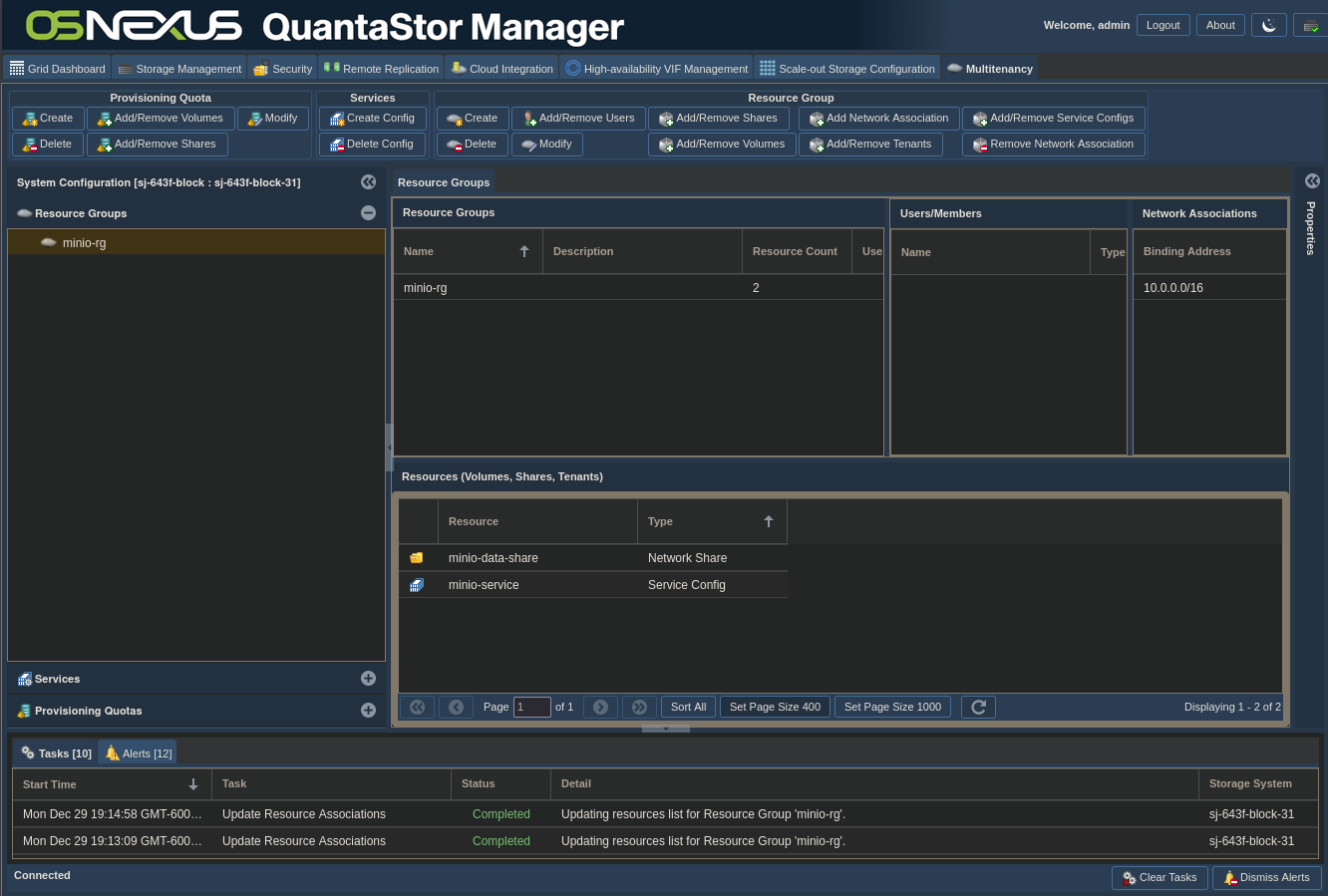
And all of a sudden, the magic starts and QuantaStor provisions and starts the MinIO container.
root@sj-643f-block-31:/home/qadmin# tail -fn 0 /var/log/qs/qs_service.log | grep minio
{Tue Dec 30 01:15:00 2025, INFO, 1c9fd640:{container-manager}:container_service_universal:368} Saving config data for container service 'minio' with '5' specified options to configuration name 'minio-service' to file '/var/run/quantastor/containers/minio_config_options.f8edf997-7dd9-b4a2-0fa8-9e9f2a4d6a19.conf'
{Tue Dec 30 01:15:00 2025, INFO, 1c9fd640:{container-manager}:container_service_base:363} Mounting share 'minio-data-share' to the share bind path '/mnt/containers/6394bbbf-c8aa-55e8-9794-59eb68fc4e10/minio/f8edf997-7dd9-b4a2-0fa8-9e9f2a4d6a19/shares/minio-data-share' with command: '/bin/mount --rbind --make-rslave /mnt/storage-pools/qs-d54bf1dd-e957-f87b-6b56-ecb46aca5a43/minio-data-share /mnt/containers/6394bbbf-c8aa-55e8-9794-59eb68fc4e10/minio/f8edf997-7dd9-b4a2-0fa8-9e9f2a4d6a19/shares/minio-data-share'
{Tue Dec 30 01:15:00 2025, INFO, 1c9fd640:{container-manager}:container_service_base:411} Shares have been successfully mounted for service with configuration name 'minio-service'
{Tue Dec 30 01:15:00 2025, INFO, 1c9fd640:{container-manager}:container_manager:750} Pulling latest Docker Image to prepare for Container with Configuration 'minio-service' for Resource Group 'minio-rg'.
{Tue Dec 30 01:15:00 2025, INFO, 1c9fd640:{container-manager}:container_service_base:104} Container Image for 'minio/minio:latest' is already present, skipping.
{Tue Dec 30 01:15:00 2025, INFO, 1c9fd640:{container-manager}:container_manager:755} Starting container from config 'minio-service', with service definition 'MinIO Object Storage' tag 'minio' associated with Resource Group 'minio-rg'
{Tue Dec 30 01:15:00 2025, INFO, 1c9fd640:{container-manager}:container_service_universal:231} Starting 'minio' service at '/opt/osnexus/quantastor/bin/qs_containerhandler_minio.sh' with command: '/opt/osnexus/quantastor/bin/qs_containerhandler_minio.sh run-container  --container "minio-f8edf9-6394bb" --bindaddrs 10.0.18.31 --bindsharessrc "/mnt/containers/6394bbbf-c8aa-55e8-9794-59eb68fc4e10/minio/f8edf997-7dd9-b4a2-0fa8-9e9f2a4d6a19/shares/" --bindsharesdest "/data" --containerimage minio/minio:latest --confpath "/var/run/quantastor/containers/minio_config_options.f8edf997-7dd9-b4a2-0fa8-9e9f2a4d6a19.conf" --ccid f8edf997-7dd9-b4a2-0fa8-9e9f2a4d6a19 --options "minio_api_port:9000,minio_bind_ip:0.0.0.0,minio_console_port:9001,minio_root_password:R1t2HAu2zDPqvzUPJhxemCbfCnztl9EcYs8I5i68,minio_root_user:5POYNLT1P11QYC8PXAMB"'
{Tue Dec 30 01:15:00 AM UTC 2025, INFO, qs_containerhandler_minio} Running container 'minio-f8edf9-6394bb' with command '/usr/bin/docker run --restart=always -d -p 0.0.0.0:9000:9000 -p 0.0.0.0:9001:9001 -e MINIO_ROOT_USER=5POYNLT1P11QYC8PXAMB -e MINIO_ROOT_PASSWORD=R1t2HAu2zDPqvzUPJhxemCbfCnztl9EcYs8I5i68 --mount type=bind,source=/mnt/containers/6394bbbf-c8aa-55e8-9794-59eb68fc4e10/minio/f8edf997-7dd9-b4a2-0fa8-9e9f2a4d6a19/shares//minio-data-share,target=/data,bind-propagation=rslave --name minio-f8edf9-6394bb minio/minio:latest server /data --console-address :9001'.
{Tue Dec 30 01:15:01 2025, INFO, 1c9fd640:{container-manager}:container_service_universal:268} Running container postrun sequence for container 'minio' service at '/opt/osnexus/quantastor/bin/qs_containerhandler_minio.sh' with command: '/opt/osnexus/quantastor/bin/qs_containerhandler_minio.sh postrun-container  --container "minio-f8edf9-6394bb" --bindaddrs 10.0.18.31 --bindsharessrc "/mnt/containers/6394bbbf-c8aa-55e8-9794-59eb68fc4e10/minio/f8edf997-7dd9-b4a2-0fa8-9e9f2a4d6a19/shares/" --bindsharesdest "/data" --containerimage minio/minio:latest --confpath "/var/run/quantastor/containers/minio_config_options.f8edf997-7dd9-b4a2-0fa8-9e9f2a4d6a19.conf" --ccid f8edf997-7dd9-b4a2-0fa8-9e9f2a4d6a19 --options "minio_api_port:9000,minio_bind_ip:0.0.0.0,minio_console_port:9001,minio_root_password:R1t2HAu2zDPqvzUPJhxemCbfCnztl9EcYs8I5i68,minio_root_user:5POYNLT1P11QYC8PXAMB"'
{Tue Dec 30 01:15:01 2025, INFO, 1c9fd640:{container-manager}:container_service_universal:271} Successfully started 'minio' service instance 'minio-f8edf9-6394bb' with configuration name 'minio-service'
{Tue Dec 30 01:15:01 2025, INFO, 1c9fd640:{container-manager}:container_manager:768} Successfully started Service with Configuration 'minio-service' for Resource Group 'minio-rg'
^C
root@sj-643f-block-31:/home/qadmin#
Play with MinIO on QuantaStor
Now that everything is configured it’s time to play. Navigate a browser to http://{ip address}:9001, using your QuantaStor host IP address. Once there, use the Access Key (username) and Secret Key (password) you set in your Service Config to login.
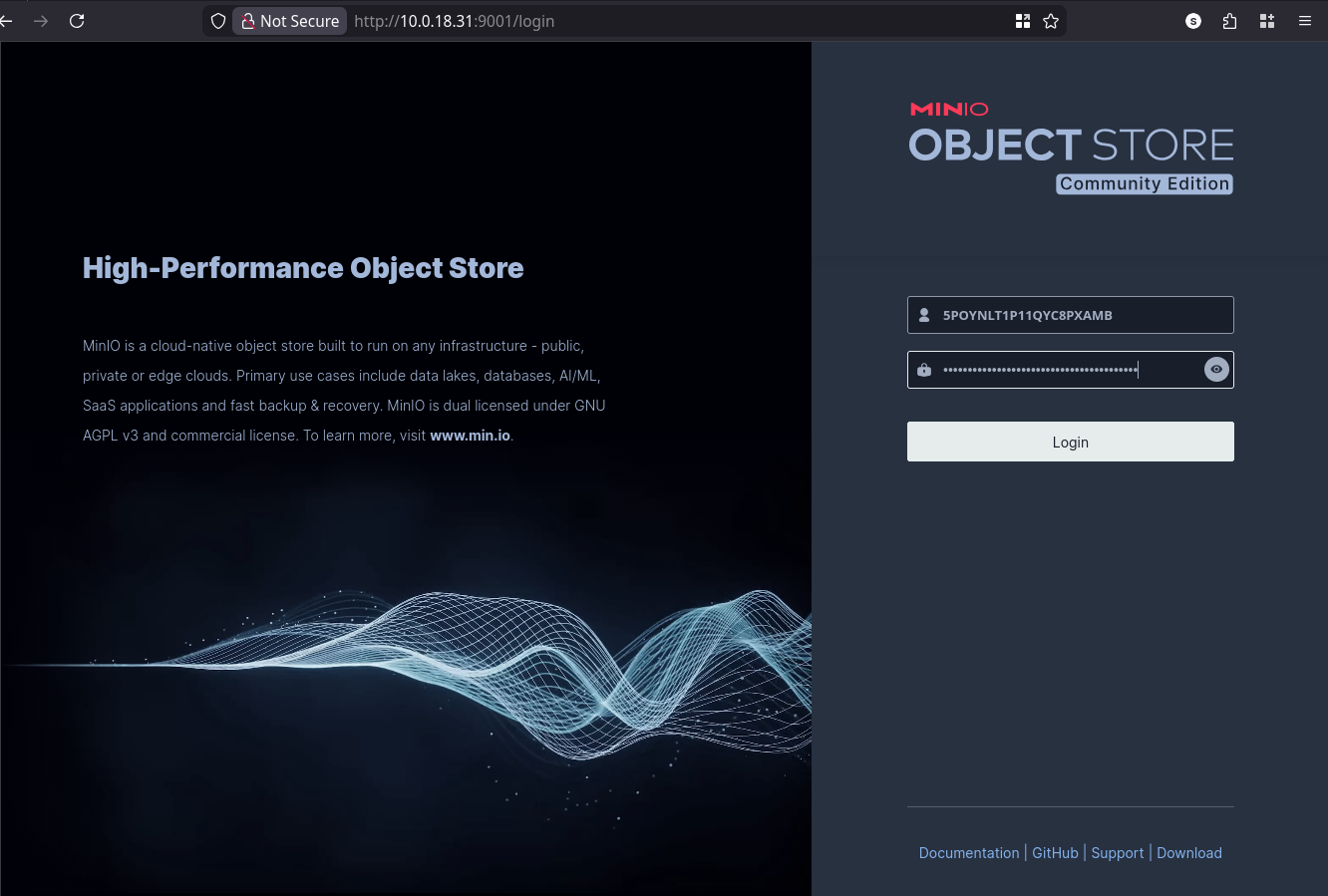
Awesome!! The config is working. You logged in with credentials that you supplied to the QuantaStor Service Config, which were passed into the MinIO container via container environment variables. Pretty cool!
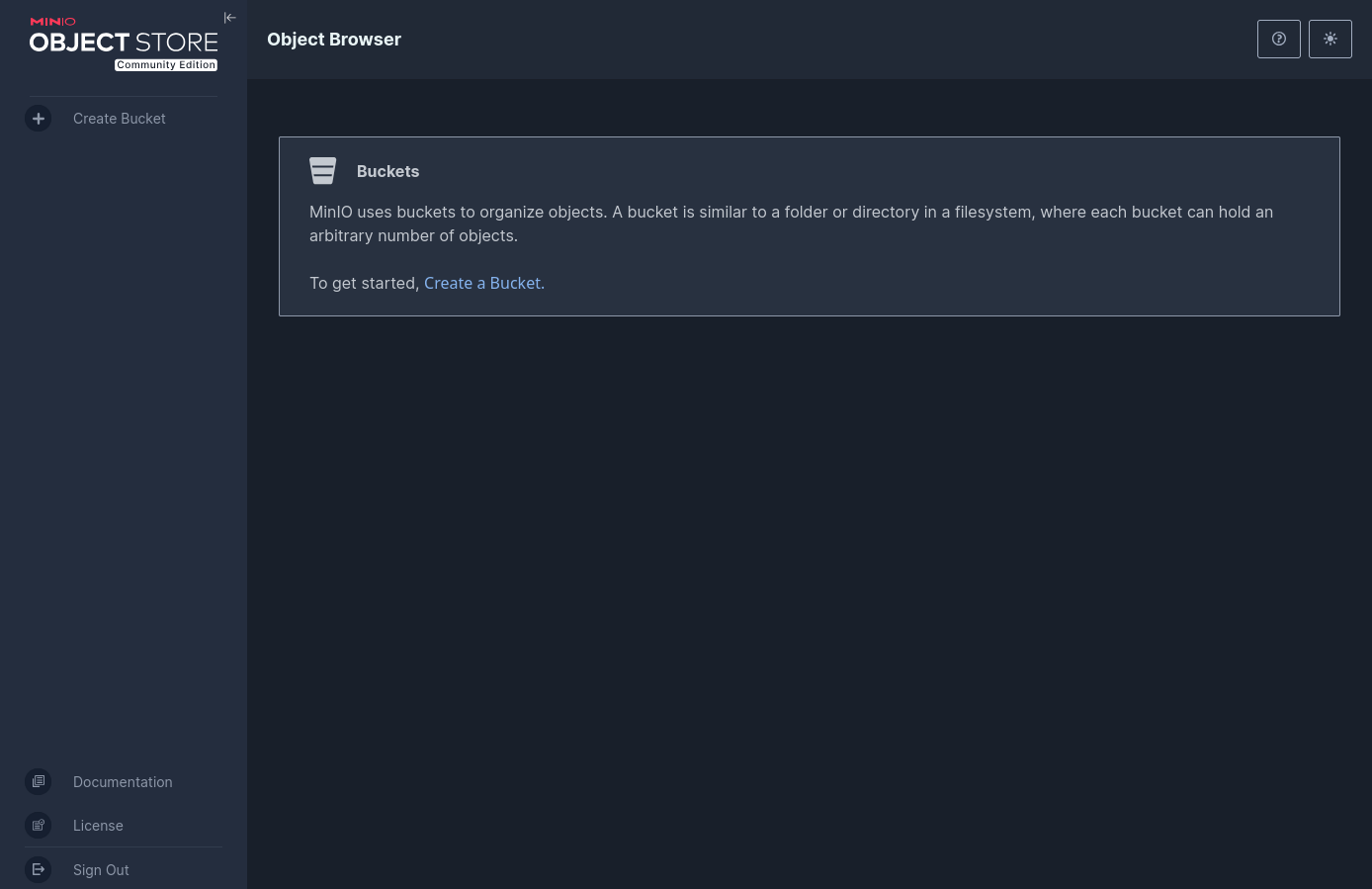
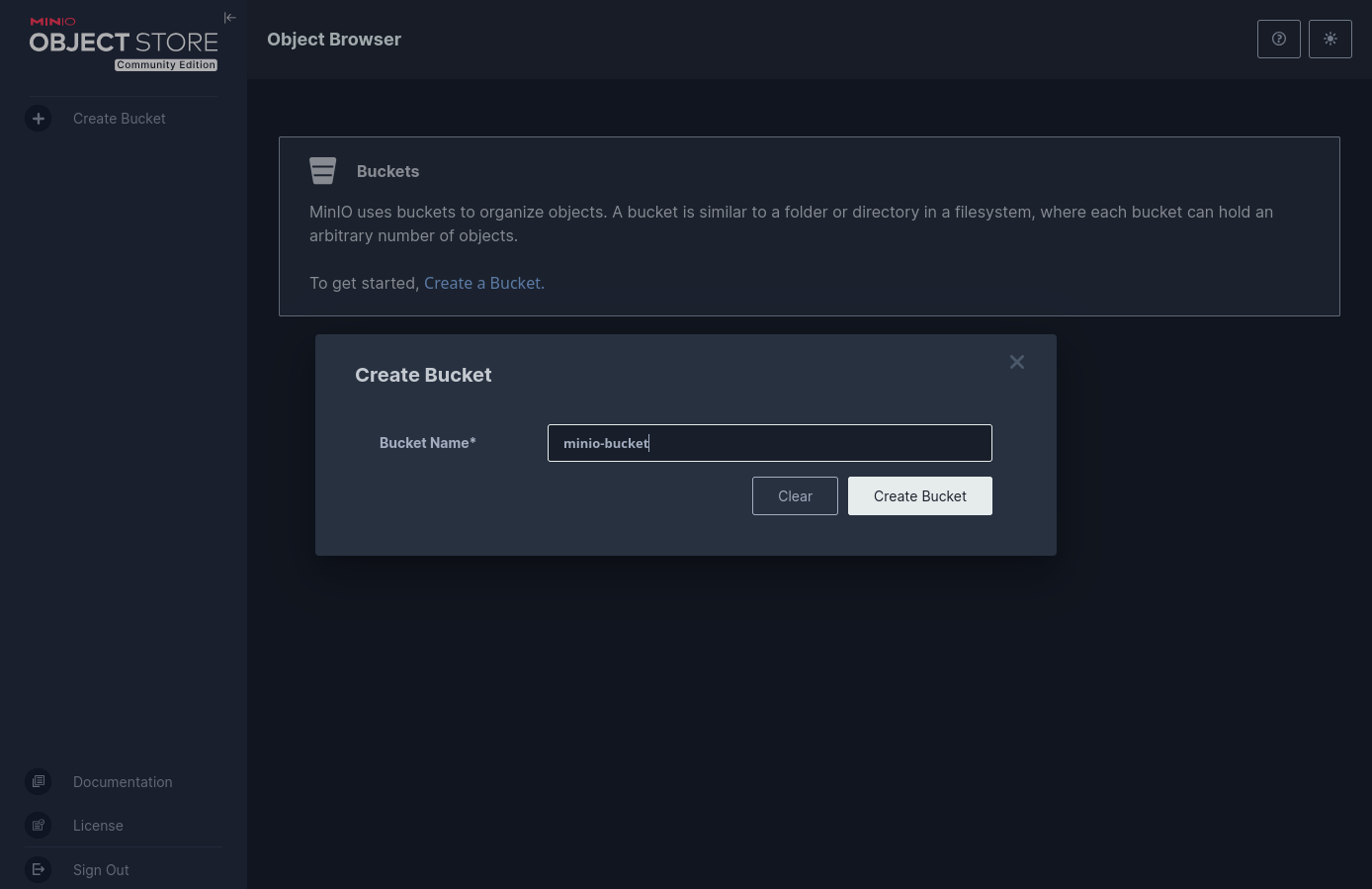
Now we need to create a bucket. Click one of the Create Bucket links and give your bucket a name. I thought long and hard about what to name mine…
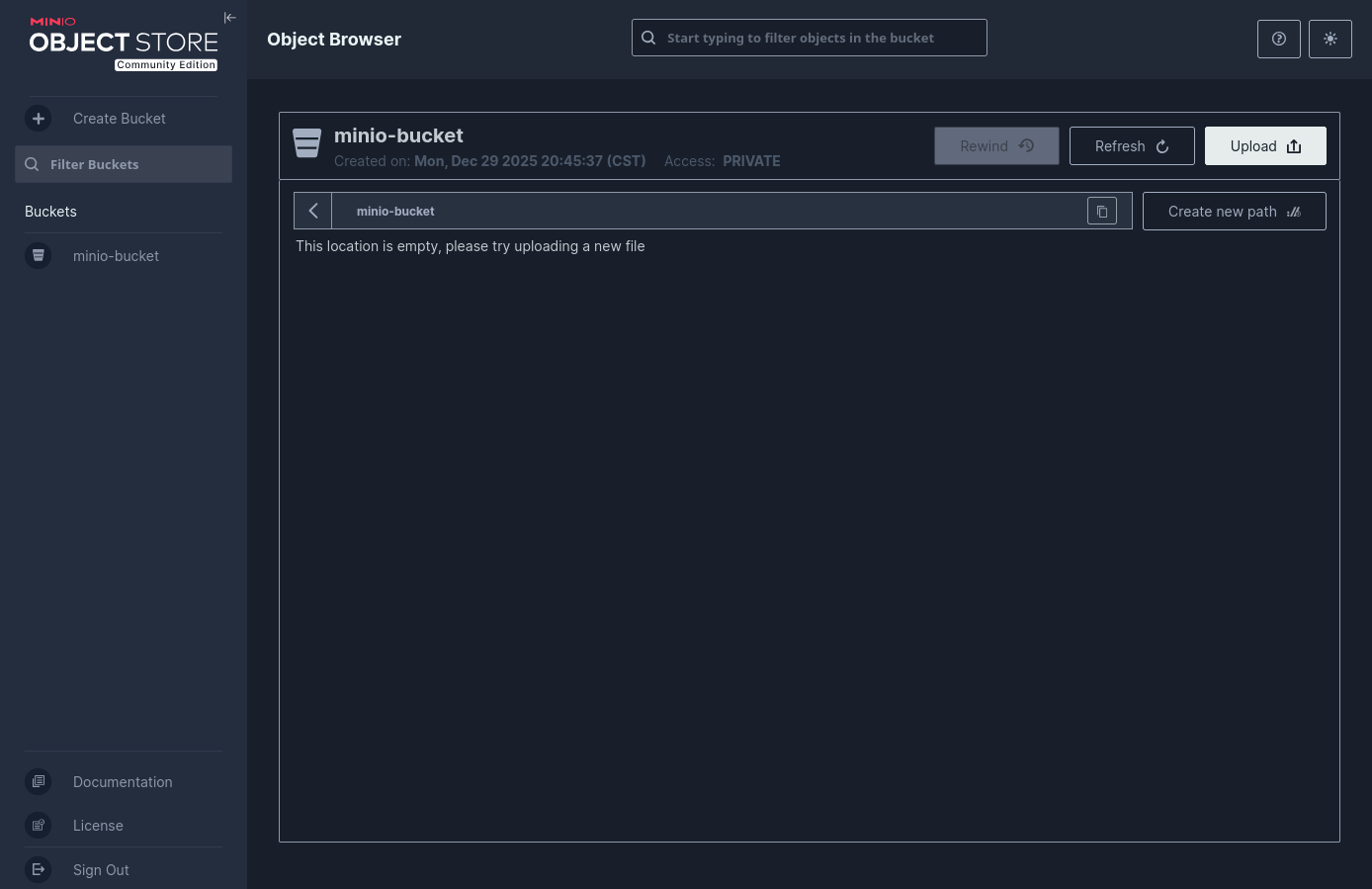
Now there’s an empty bucket. Click the Upload button and upload a file into your bucket. The one I chose is example.file.1.
And the upload completes and the file is visible in the browser-based object browser.
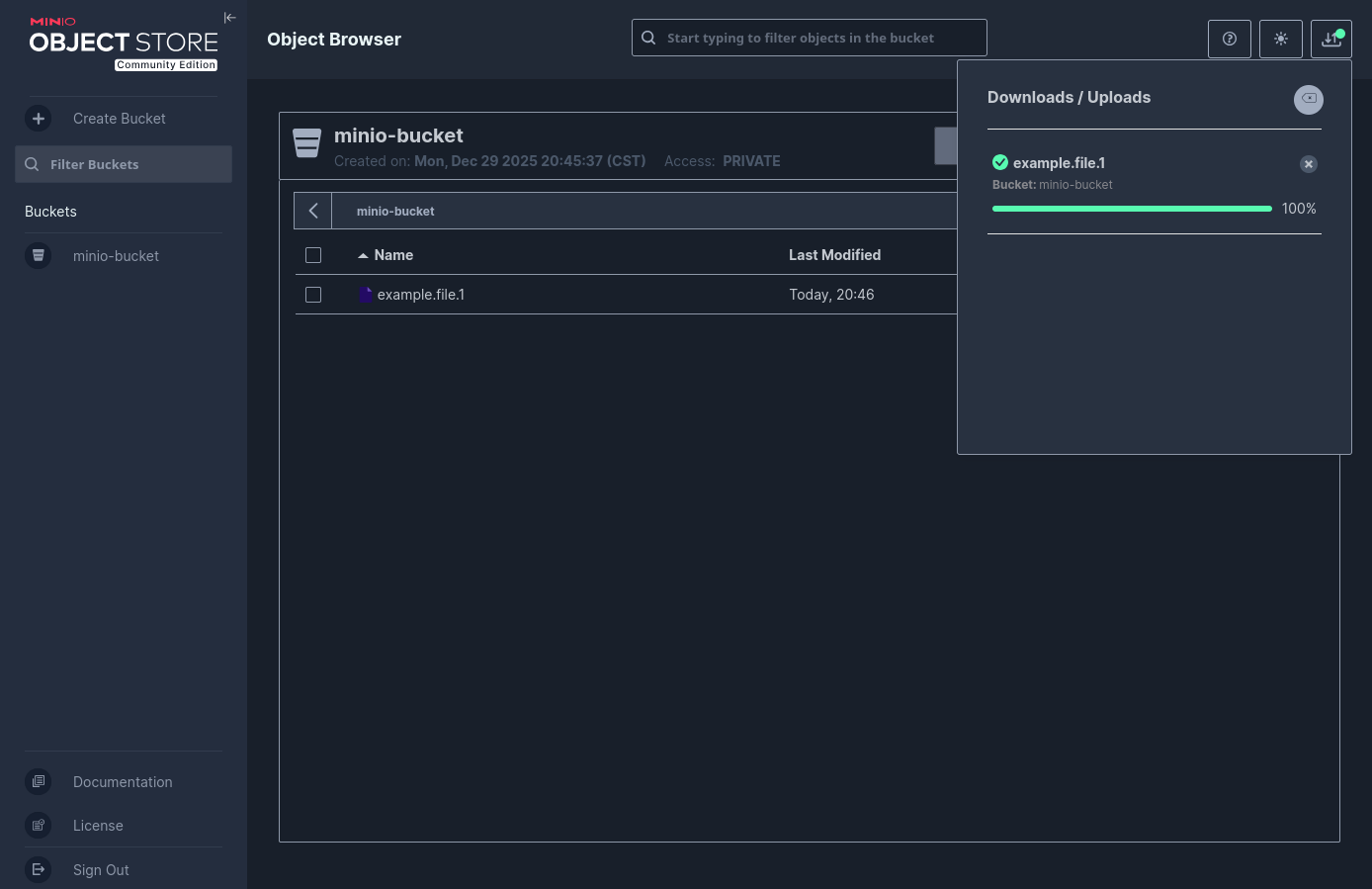
But did it get stored to the share we configured? Yep!! The first ls command shows what’s in the container mount point for minio-data-share, and you can see that it’s our bucket. If you did an ls -a instead you’d see that there’s a hidden .minio.sys directory that contains the bucket config. If we ls into the bucket we see the file we uploaded. That same mount is also added to /export and is much shorter and easier to find, and provides the exact same info.
### List the files in the path passed to the container
root@sj-643f-block-31:/home/qadmin# ls /mnt/containers/6394bbbf-c8aa-55e8-9794-59eb68fc4e10/minio/f8edf997-7dd9-b4a2-0fa8-9e9f2a4d6a19/shares/minio-data-share/
minio-bucket

### List the files in the path to the bucket
root@sj-643f-block-31:/home/qadmin# ls /mnt/containers/6394bbbf-c8aa-55e8-9794-59eb68fc4e10/minio/f8edf997-7dd9-b4a2-0fa8-9e9f2a4d6a19/shares/minio-data-share/minio-bucket/
example.file.1

### List the files at another mount point
root@sj-643f-block-31:/home/qadmin# ls /export/minio-data-share/
minio-bucket

### List the files in the bucket from another mount point
root@sj-643f-block-31:/home/qadmin# ls /export/minio-data-share/minio-bucket/
example.file.1

root@sj-643f-block-31:/home/qadmin#
That’s great! We created a bucket, uploaded a file through the web object browser and we can find it in our QuantaStor share. But that’s not how object stores are usually used. Let’s test this in a more appropriate way. MinIO is an Amazon S3-compatible object store. As such, you can use the AWS CLI tool against it, so let’s push a file using that.
I’ll leave installing the AWS CLI to you, but once it’s installed the first thing we typically do is to configure a profile so we can shorten the amount of data we need to pass when using the aws command. Run the following command, replacing my keys with yours.
jordahl@apollo:~$ aws configure --profile minio
AWS Access Key ID [None]: 5POYNLT1P11QYC8PXAMB
AWS Secret Access Key [None]: R1t2HAu2zDPqvzUPJhxemCbfCnztl9EcYs8I5i68
Default region name [None]:
Default output format [None]:
jordahl@apollo:~$
If you recall from our Service Config, there are two ports used, 9001 for the console and 9000 for API access. For this activity we’re going to use 9000.
### List the files in the bucket
jordahl@apollo:~$ aws --profile minio --endpoint-url http://10.0.18.31:9000 s3 ls s3://minio-bucket
2025-12-29 18:27:24       2905 example.file.1

### Copy a new file to the bucket
jordahl@apollo:~$ aws --profile minio --endpoint-url http://10.0.18.31:9000 s3 cp example.file.2 s3://minio-bucket
Completed 4.9 KiB/4.9 KiB (8.5 KiB/s) with 1 file(s) remaining
upload: ./example.file.2 to s3://minio-bucket/example.file.2

### List the files in the bucket
jordahl@apollo:~$ aws --profile minio --endpoint-url http://10.0.18.31:9000 s3 ls s3://minio-bucket
2025-12-29 18:27:24       2905 example.file.1
2025-12-29 18:28:07       4988 example.file.2
jordahl@apollo:~$
Very cool! We’ve listed, uploaded and validated use from the AWS CLI. And just to come full circle, the example.file.2 file shows up when we refresh the web object browser.
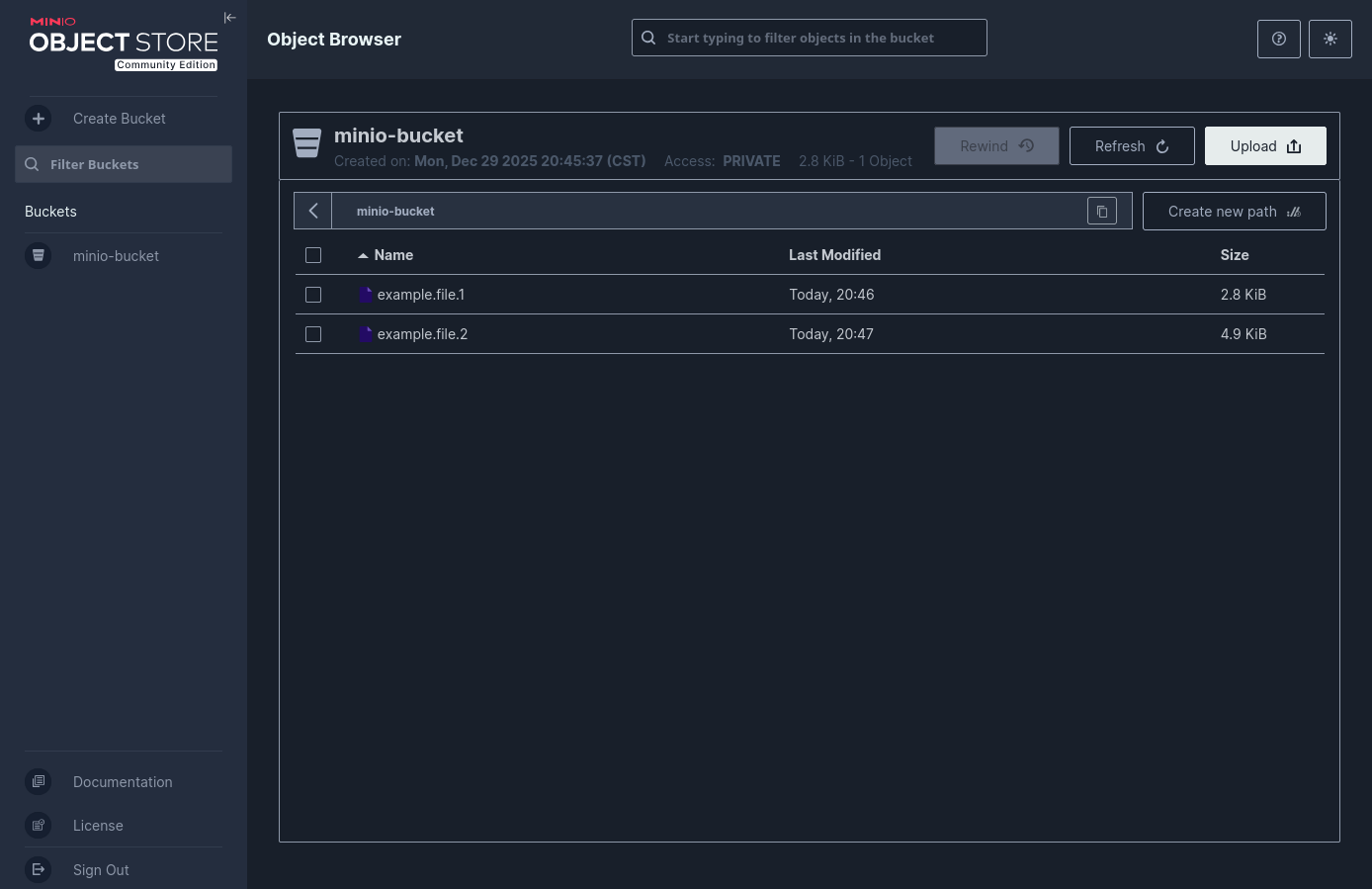
And just for completeness, let’s try deleting that second file…
### Delete the file from the bucket
jordahl@apollo:~$ aws --profile minio --endpoint-url http://10.0.18.31:9000 s3 rm s3://minio-bucket/example.file.2
delete: s3://minio-bucket/example.file.2

### List the files in the bucket
jordahl@apollo:~$ aws --profile minio --endpoint-url http://10.0.18.31:9000 s3 ls s3://minio-bucket
2025-12-29 18:27:24       2905 example.file.1
jordahl@apollo:~$
And that’s it! We’re done! I hope this gives you some great ideas on how you can integrate other services on top of QuantaStor and make it more integral to your organization.
Summing it Up
By running MinIO in Docker directly on a QuantaStor appliance, you can easily add a lightweight S3-compatible interface to your storage environment. This is perfect for developers, testing, or any workflow that needs a simple object storage target without additional hardware or complex configuration.
I’d love to hear from you – the good, the bad and the ugly. Your feedback is always welcome.
Useful Resources
Files Used in This Blog:
QuantaStor Links:
MinIO Links:
And, as mentioned above, here’s the code for qs_containerhandler_minio.sh:
───────┬───────────────────────────────────────────────────────────────────────────────────────────────────────────────────────────────────────────────────────────────
       │ File: qs_containerhandler_minio.sh
───────┼───────────────────────────────────────────────────────────────────────────────────────────────────────────────────────────────────────────────────────────────
   1   │ #!/usr/bin/env bash
   2   │ # qs_containerhandler_minio.sh - MinIO service container handler
   3   │
   4   │ # QuantaStor wants to pass a .../shares volume to the docker container
   5   │ # that contains any number of bind mounts for all of the shares that
   6   │ # are part of the resource group.  MinIO doesn't like that.  It doesn't
   7   │ # deal with the bind mounts and errors out. This script accommidates
   8   │ # that by looking into the path that QuantaStor passes in to determine
   9   │ # if there is exactly 1 subdirectory.  If more it will error out.  If 1 it
  10   │ # will change BINDSRC to use the subdirectory.
  11   │
  12   │ # The following two lines are used for debugging purposes
  13   │ # exec 1>/var/log/qs/debug_minio_container 2>&1
  14   │ # set -x
  15   │
  16   │ ##############################################################################
  17   │ # ------------------- script-specific constants ---------------------------- #
  18   │ ##############################################################################
  19   │ CONTAINERTAG="minio"
  20   │ CONTAINERDESC="MinIO Service Container Handler"
  21   │ VERSION="v1.1"
  22   │ COPYRIGHT="Copyright (c) 2025 OSNexus Corporation"
  23   │
  24   │ APPNAME="qs_containerhandler_${CONTAINERTAG}"
  25   │ APPDESC="$APPNAME $VERSION - $CONTAINERDESC"
  26   │
  27   │ ##############################################################################
  28   │ # ---------------- import container handler shared functions --------------- #
  29   │ ##############################################################################
  30   │
  31   │ # Find the library next to this script; adjust if you store it elsewhere.
  32   │ LIB_DIR="$(cd -- "$(dirname "${BASH_SOURCE[0]}")" && pwd)"
  33   │ # shellcheck source=qs_containerlib.sh
  34   │ source "${LIB_DIR}/qs_containerlib.sh"
  35   │
  36   │ ##############################################################################
  37   │ # -------------------------- container specific logic ---------------------- #
  38   │ ##############################################################################
  39   │
  40   │ usage()
  41   │ {
  42   │   printf "\nExamples:\n\n"
  43   │   printf "    $APPNAME.sh run-container -c myminio -b 10.0.0.1 -s /shares/src -d /data -i minio/minio:latest -o \"minio_root_user:admin,minio_root_password:pa
       │ ssword123\"
  44   │ "
  45   │   printf "    $APPNAME.sh run-container --test ... (Dry run: prints command without executing)\n"
  46   │   printf "\n"
  47   │ }
  48   │
  49   │ # Required, run-container is executed to start the container with the provided parameters.
  50   │ run-container()
  51   │ {
  52   │     # MinIO root user/pass, ports, and custom IP from options
  53   │     MINIO_ROOT_USER=""
  54   │     MINIO_ROOT_PASSWORD=""
  55   │     MINIO_API_PORT="9000"
  56   │     MINIO_CONSOLE_PORT="9001"
  57   │     MINIO_BIND_IP=""
  58   │
  59   │     IFS=',' read -ra OPT_ARR <<< "$OPTIONS"
  60   │     for opt in "${OPT_ARR[@]}"; do
  61   │         case "$opt" in
  62   │             minio_root_user:*) MINIO_ROOT_USER="${opt#minio_root_user:}" ;;
  63   │             minio_root_password:*) MINIO_ROOT_PASSWORD="${opt#minio_root_password:}" ;;
  64   │             minio_bind_ip:*) MINIO_BIND_IP="${opt#minio_bind_ip:}" ;;
  65   │             minio_api_port:*) MINIO_API_PORT="${opt#minio_api_port:}" ;;
  66   │             minio_console_port:*) MINIO_CONSOLE_PORT="${opt#minio_console_port:}" ;;
  67   │         esac
  68   │     done
  69   │
  70   │     # Validate BINDSRC and find the single subdirectory
  71   │     if [[ -n "$BINDSRC" ]]; then
  72   │         # Find subdirectories in BINDSRC (non-recursive)
  73   │         # We use find to be robust, redirect stderr to null to avoid permission noise
  74   │         SUBDIRS_COUNT=$(find "$BINDSRC" -mindepth 1 -maxdepth 1 -type d | wc -l)
  75   │
  76   │         if [[ "$SUBDIRS_COUNT" -ne 1 ]]; then
  77   │             logservice "ERROR" "Validation failed: BINDSRC '$BINDSRC' must contain exactly one subdirectory (the share). Found $SUBDIRS_COUNT."
  78   │             echo "ERROR: BINDSRC '$BINDSRC' must contain exactly one subdirectory. Found $SUBDIRS_COUNT." >&2
  79   │             exit 1
  80   │         fi
  81   │
  82   │         # Get the single subdirectory path
  83   │         BINDSRC=$(find "$BINDSRC" -mindepth 1 -maxdepth 1 -type d | head -n 1)
  84   │         logservice "INFO" "Identified share directory: $BINDSRC"
  85   │     fi
  86   │
  87   │     # Determine which IPs to bind to.
  88   │     # If MINIO_BIND_IP is set via options, it takes precedence.
  89   │     # Otherwise, we use BINDADDR (passed via -b flag).
  90   │     TARGET_IPS=()
  91   │     if [[ -n "$MINIO_BIND_IP" ]]; then
  92   │         TARGET_IPS+=("$MINIO_BIND_IP")
  93   │     else
  94   │         # Split BINDADDR by comma or space into an array
  95   │         IFS=', ' read -r -a ADDR_ARRAY <<< "$BINDADDR"
  96   │         TARGET_IPS=("${ADDR_ARRAY[@]}")
  97   │     fi
  98   │
  99   │     # Build docker run command
 100   │     DOCKER_CMD=(/usr/bin/docker run --restart=always -d)
 101   │
 102   │     # Add port mappings for each target IP
 103   │     for addr in "${TARGET_IPS[@]}"; do
 104   │         [[ -z "$addr" ]] && continue
 105   │         DOCKER_CMD+=(-p "$addr:$MINIO_API_PORT:9000" -p "$addr:$MINIO_CONSOLE_PORT:9001")
 106   │     done
 107   │
 108   │     # Add container specific environment variables
 109   │     [[ -n "$MINIO_ROOT_USER" ]] && DOCKER_CMD+=(-e "MINIO_ROOT_USER=$MINIO_ROOT_USER")
 110   │     [[ -n "$MINIO_ROOT_PASSWORD" ]] && DOCKER_CMD+=(-e "MINIO_ROOT_PASSWORD=$MINIO_ROOT_PASSWORD")
 111   │
 112   │     # Add share bind mount point associated with the resource-group into the container at location BINDDST
 113   │     if [[ -n "$BINDSRC" && -n "$BINDDST" ]]; then
 114   │         DOCKER_CMD+=(--mount "type=bind,source=$BINDSRC,target=$BINDDST,bind-propagation=rslave")
 115   │     fi
 116   │
 117   │     # Add container name and image into the run line to make it easier to identify
 118   │     [[ -n "$CONTAINERNAME" ]] && DOCKER_CMD+=(--name "$CONTAINERNAME")
 119   │     DOCKER_CMD+=("$CONTAINERIMAGE")
 120   │
 121   │     # Add MinIO specific start command
 122   │     DOCKER_CMD+=(server "$BINDDST" --console-address ":9001")
 123   │
 124   │     # EXECUTION BLOCK
 125   │     if [[ "$DRY_RUN" == "1" ]]; then
 126   │         echo "TEST MODE: Action [Run Container]"
 127   │         echo "COMMAND: ${DOCKER_CMD[*]}"
 128   │     else
 129   │         # Run the command
 130   │         if [[ "$VERBOSE" == "1" || "$DEBUG" == "1" ]]; then
 131   │             logservice "DEBUG" "${DOCKER_CMD[*]}"
 132   │         fi
 133   │
 134   │         logservice "INFO" "Running container '${CONTAINERNAME}' with command '${DOCKER_CMD[*]}'."
 135   │         "${DOCKER_CMD[@]}"
 136   │     fi
 137   │ }
 138   │
 139   │ ##############################################################################
 140   │ # ----------------------------- main entry --------------------------------- #
 141   │ ##############################################################################
 142   │
 143   │ # Pre-parse for --test flag to handle Dry Run mode
 144   │ # We strip it from arguments before passing to parse_cli to avoid library errors
 145   │ ARGS=()
 146   │ DRY_RUN=0
 147   │ for arg in "$@"; do
 148   │     if [[ "$arg" == "--test" ]]; then
 149   │         DRY_RUN=1
 150   │     else
 151   │         ARGS+=("$arg")
 152   │     fi
 153   │ done
 154   │ set -- "${ARGS[@]}"
 155   │
 156   │ parse_cli OPERATION "$@"           # populate globals & OPERATION
 157   │ dispatch "$OPERATION" run-container usage version
 OSNexus Official Blog
Leave a comment